

Round-trip search is now available for flights departing on or after Tuesday, May 19, 2026.
* For itineraries of two or more segments that span Monday, May 18, 2026 and Tuesday, May 19, 2026, please make separate one-way reservations.
For passengers boarding on or before May 18, 2026, procedures can be completed through the Reservation and Service Center.
Online Check-in is available from 24 hours up to 20 minutes prior to your flight departure.
Please have your Reservation Number or e-Ticket number ready.
Online Check-InTraveling with an unaccompanied child
If a child is traveling alone, they must meet the applicable travel requirements.
Important Notes When Searching for Reservations Including Passengers with a Disability Certificate
IBEX Airlines offers a disability discount
for one passenger holding a disability certificate and up to one accompanying assistant.
When a reservation includes a passenger with a disability certificate, bookings can be made for up to two passengers in total.
For groups of three or more passengers, please make separate reservations.
<例>

Traveling as a party of four
A: Passenger with a disability
B: Accompanying assistant


Reservation for two passengers (A and B)
※Disability discount applied


Reservation for two passengers (C and D)

Reservation for two passengers (A and B)
※Disability discount applied
Reservation for two passengers (C and D)
When using Gmail, incorrect information such as departure/arrival times and flight numbers may be displayed in the email due to Google system behavior.
Please refer to the Reservation Confirmation page via the link provided in the email to verify the correct information.
| Reservation Notifications | Boarding / Flight Status Notifications |
Arrival/Departure Alerts for Those Sending Off or Picking Up Passengers |
|
|---|---|---|---|
| Email Contents |
Mainly used for emails related to reservations (including changes and cancellations) and ticket purchases. You can view your e-Ticket Itinerary Receipt, which includes the Reservation Number or e-Ticket Number required for reservation changes and check-in procedures on the day of departure. | Emails related to boarding and flight status will be sent to passengers. Flight status notifications may be sent from 48 hours prior to departure until the scheduled departure time. | If requested, departure and arrival notifications can be sent to those sending off or picking up passengers.
|
| Example emails |
|
|
|
| Registered Email Address |
Email address registered as the Main Contact's email address
|
Email address registered to receive Boarding / Flight Status Notifications
|
Email address registered for arrival/departure notifications for those sending off or picking up passengers
|
| How to Register or Change an Email Address |
|
|
|
| Reservation Notifications | Email Contents |
Mainly used for emails related to reservations (including changes and cancellations) and ticket purchases. You can view your e-Ticket Itinerary Receipt, which includes the Reservation Number or e-Ticket Number required for reservation changes and check-in procedures on the day of departure. |
Example emails |
|
Registered Email Address |
Email address registered as the Main Contact's email address
|
How to Register or Change an Email Address |
|
|---|---|---|---|---|---|---|---|---|
| Boarding / Flight Status Notifications | Email Contents |
Emails related to boarding and flight status will be sent to passengers. Flight status notifications may be sent from 48 hours prior to departure until the scheduled departure time. |
Example emails |
|
Registered Email Address |
Email address registered to receive Boarding / Flight Status Notifications
|
How to Register or Change an Email Address |
|
| Arrival/Departure Alerts for Those Sending Off or Picking Up Passengers |
Email Contents |
If requested, departure and arrival notifications can be sent to those sending off or picking up passengers.
|
Example emails |
|
Registered Email Address |
Email address registered for arrival/departure notifications for those sending off or picking up passengers
|
How to Register or Change an Email Address |
|
These are the steps to register an email address for reservation and boarding / flight status mail notifications for reservations purchased other than via IBEX website.
The same procedure applies both before and after payment.
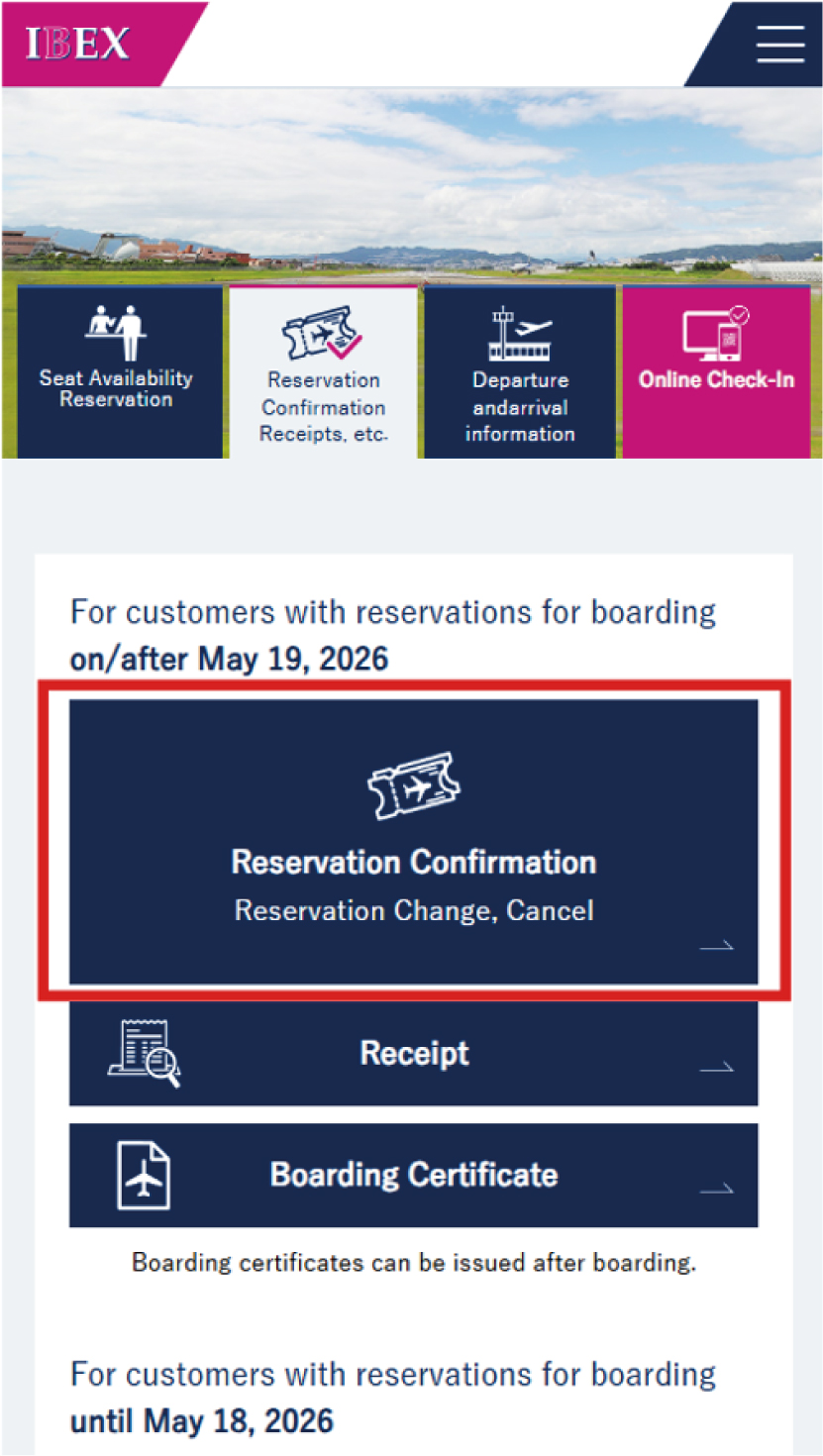
Tap [Reservation Confirmation].
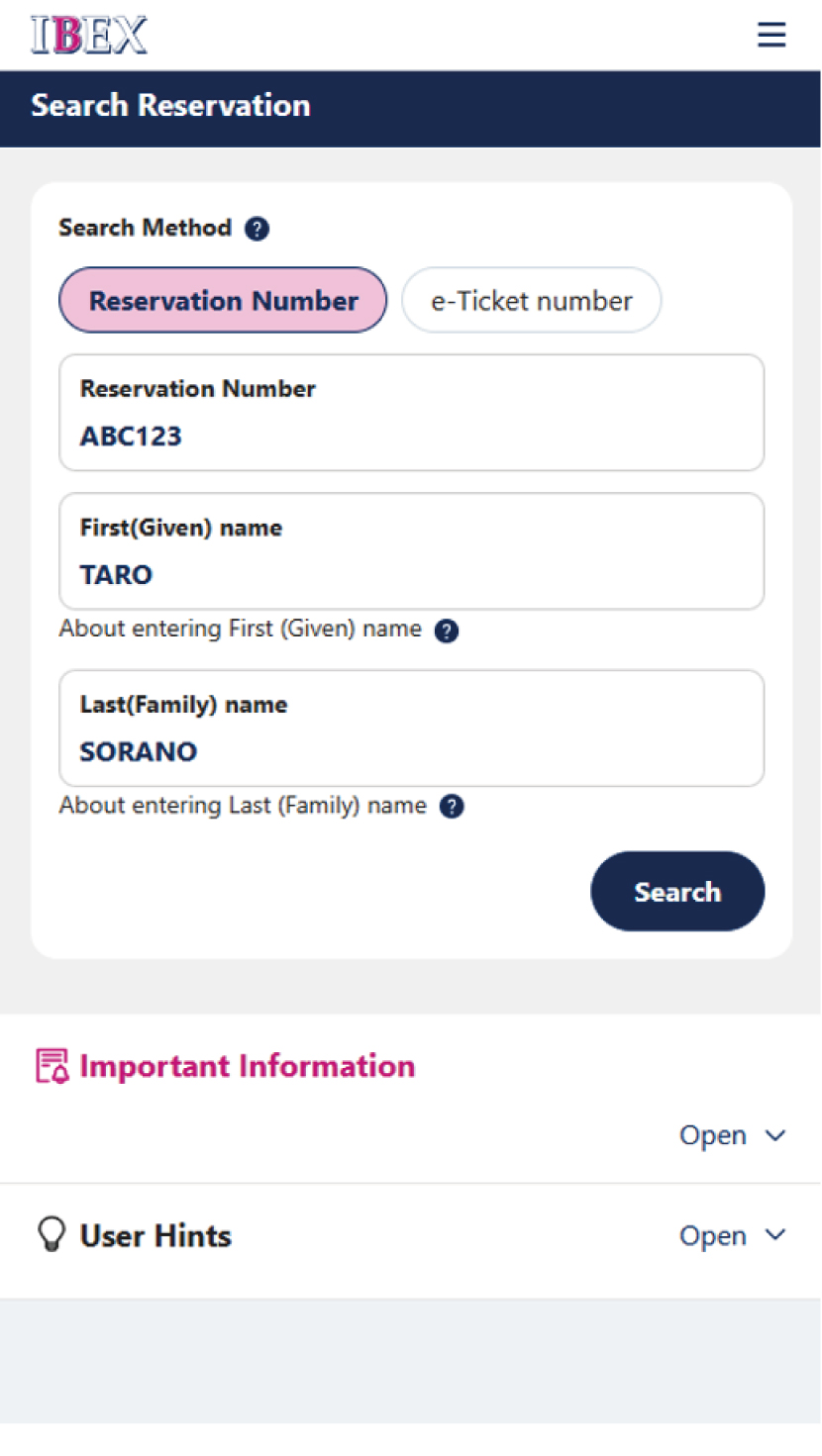
Enter your reservation details and search for the reservation.

Follow the instructions at the top of the page to proceed with email address registration.
You can also register an email address via [Edit] in Contact Info or Passenger Information.
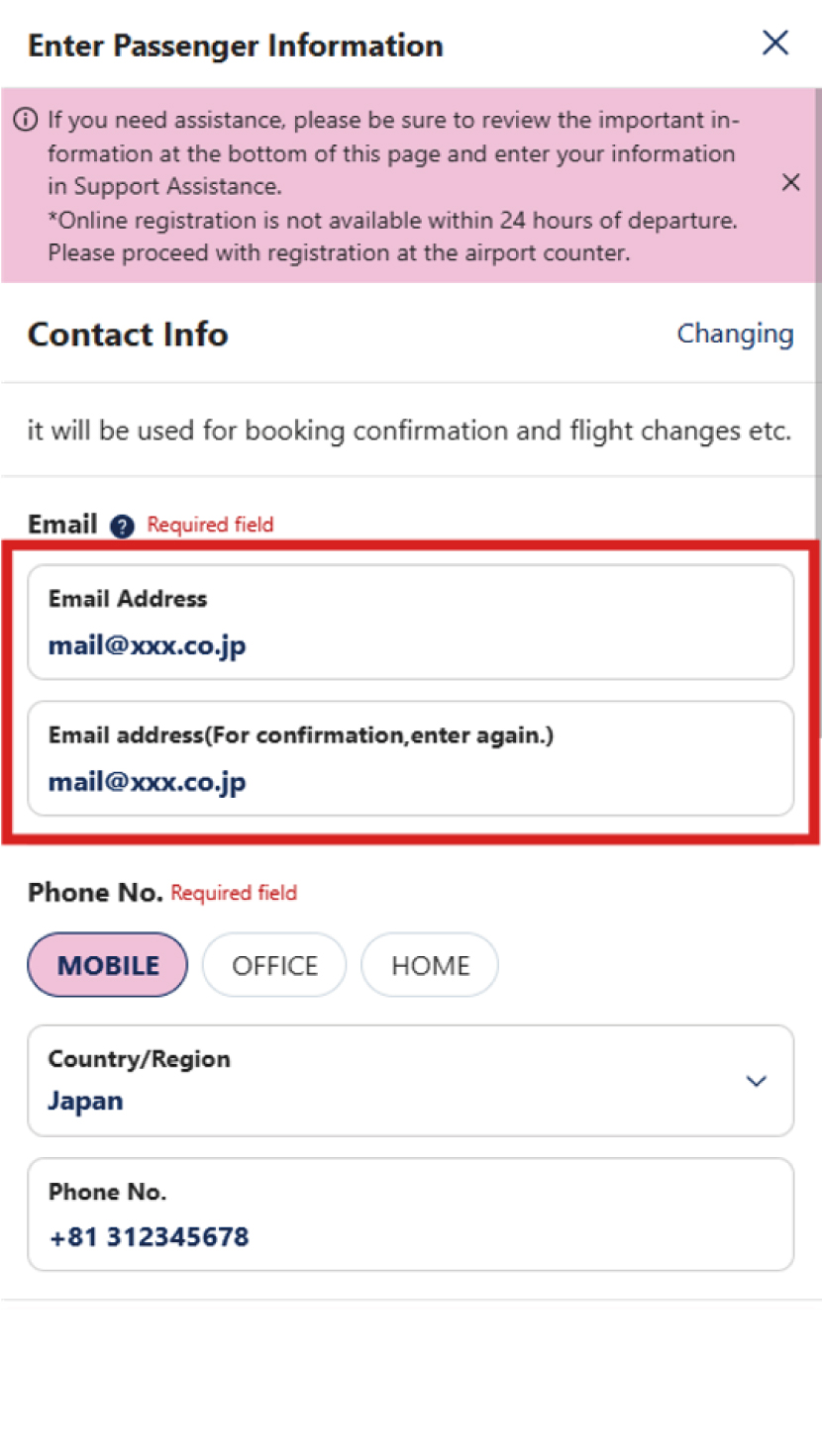
Select [Contact Info] and enter your email address. Then scroll down.
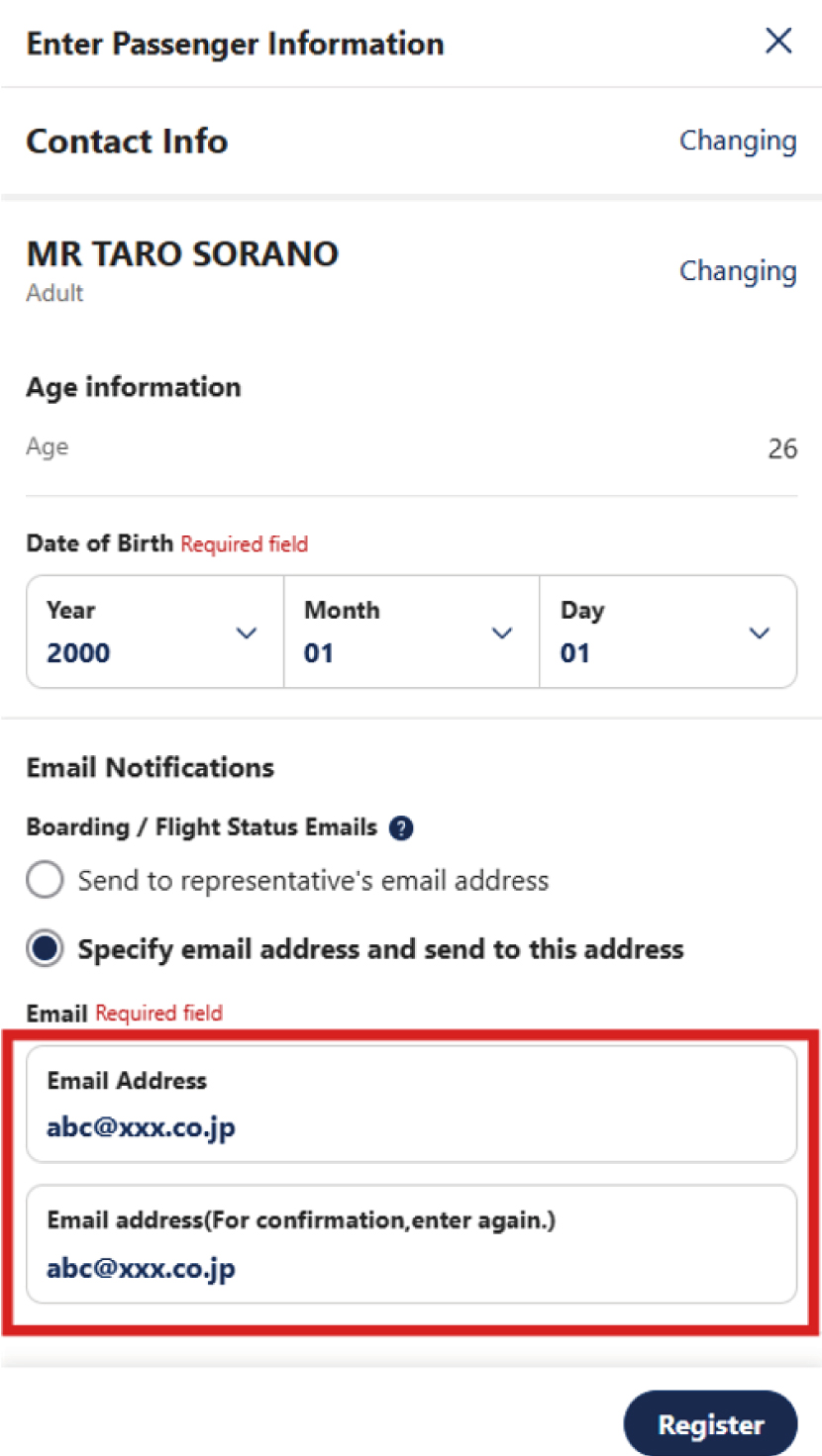
On the same screen, select the passenger's name and choose or enter the email address to receive "Boarding / flight status Emails."
Select either [Send to representative's email address] or [Specify email address and send to other address], then press [Register].
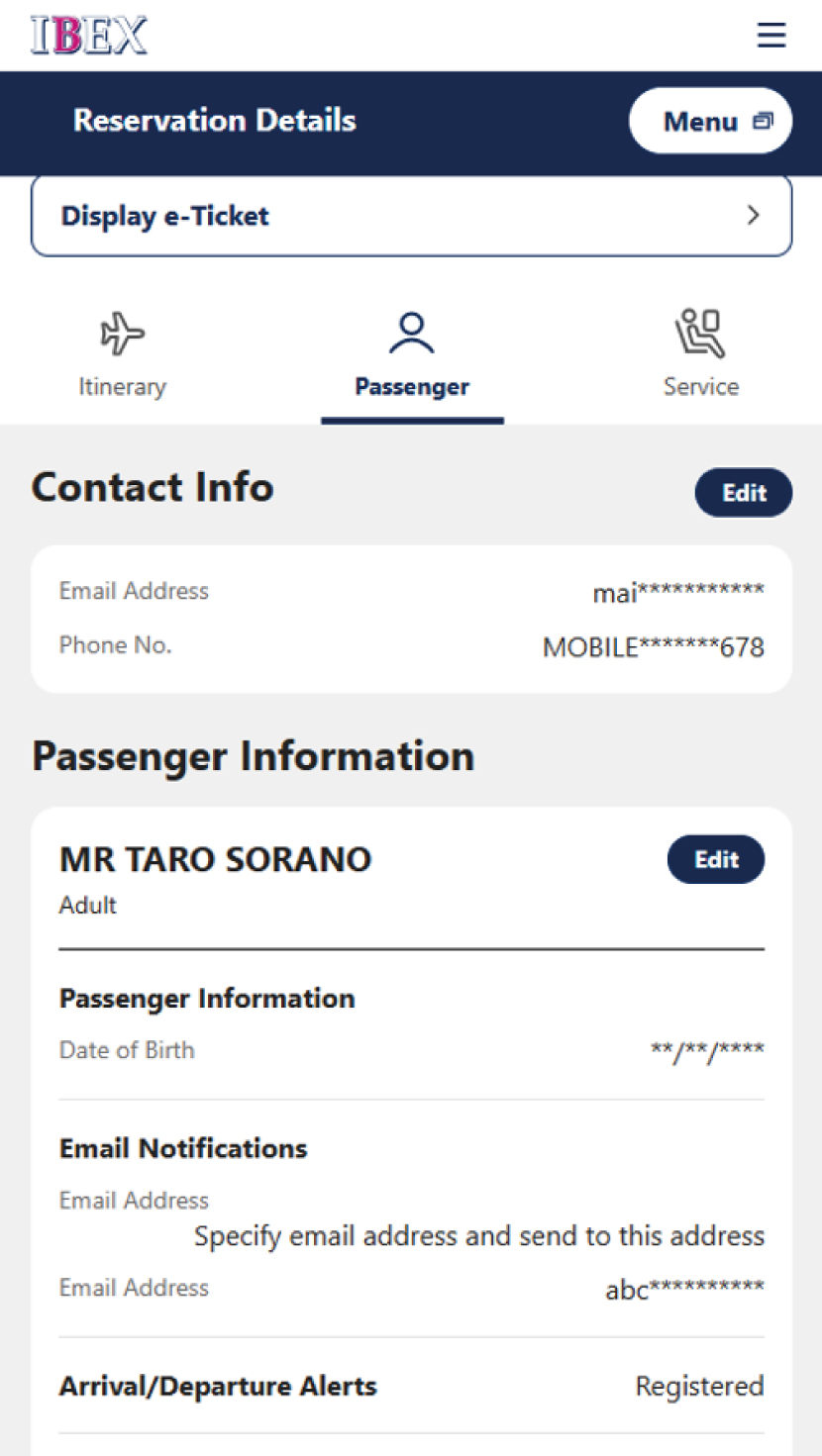
Registration is complete once "Email Adress" is reflected under Contact Info and Passenger Information.
The email registration notice displayed at the top of the page will also disappear.
These are the steps to change an email address that has already been registered.
The same procedure applies both before and after payment.
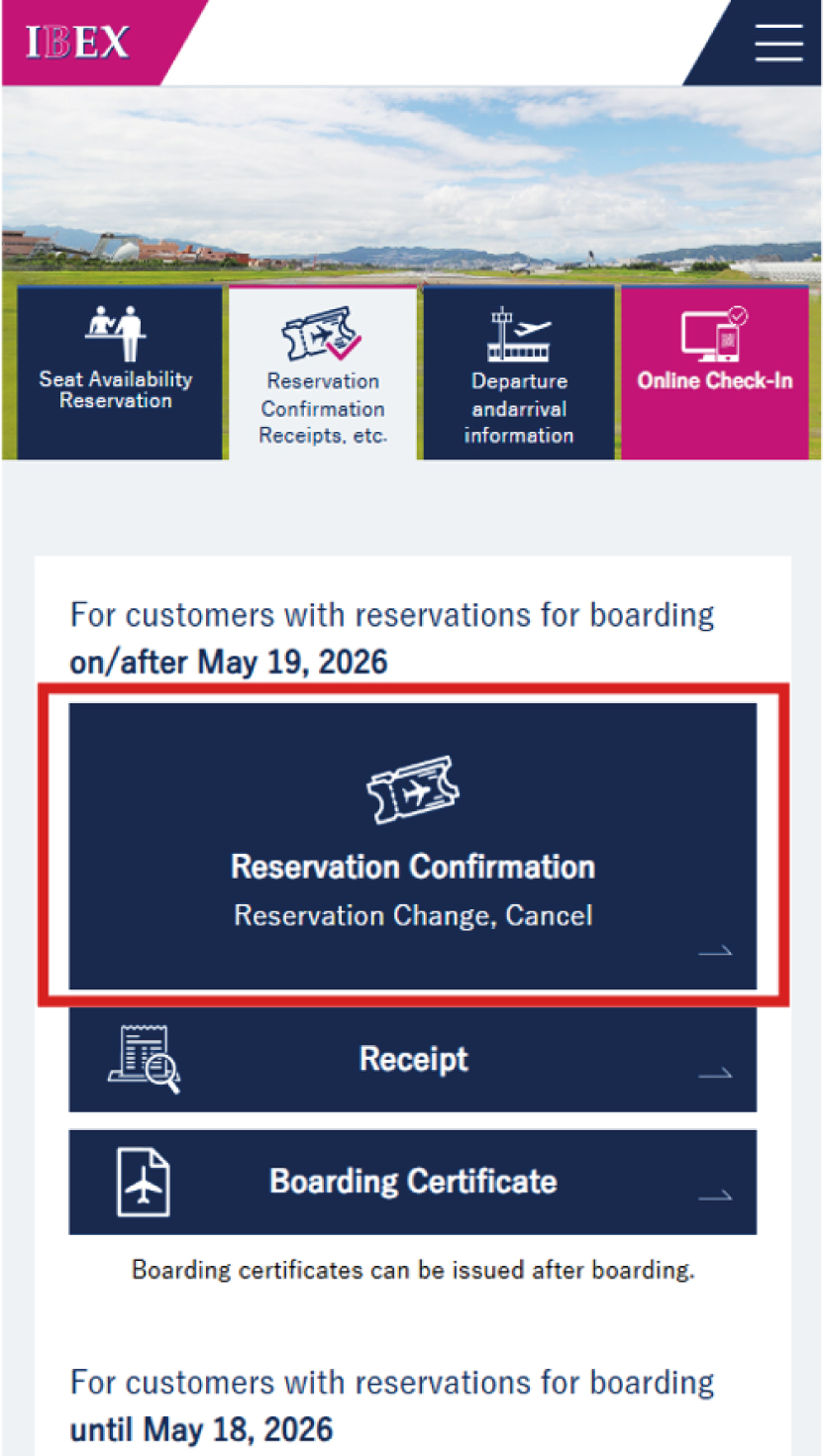
Tap [Reservation Confirmation].
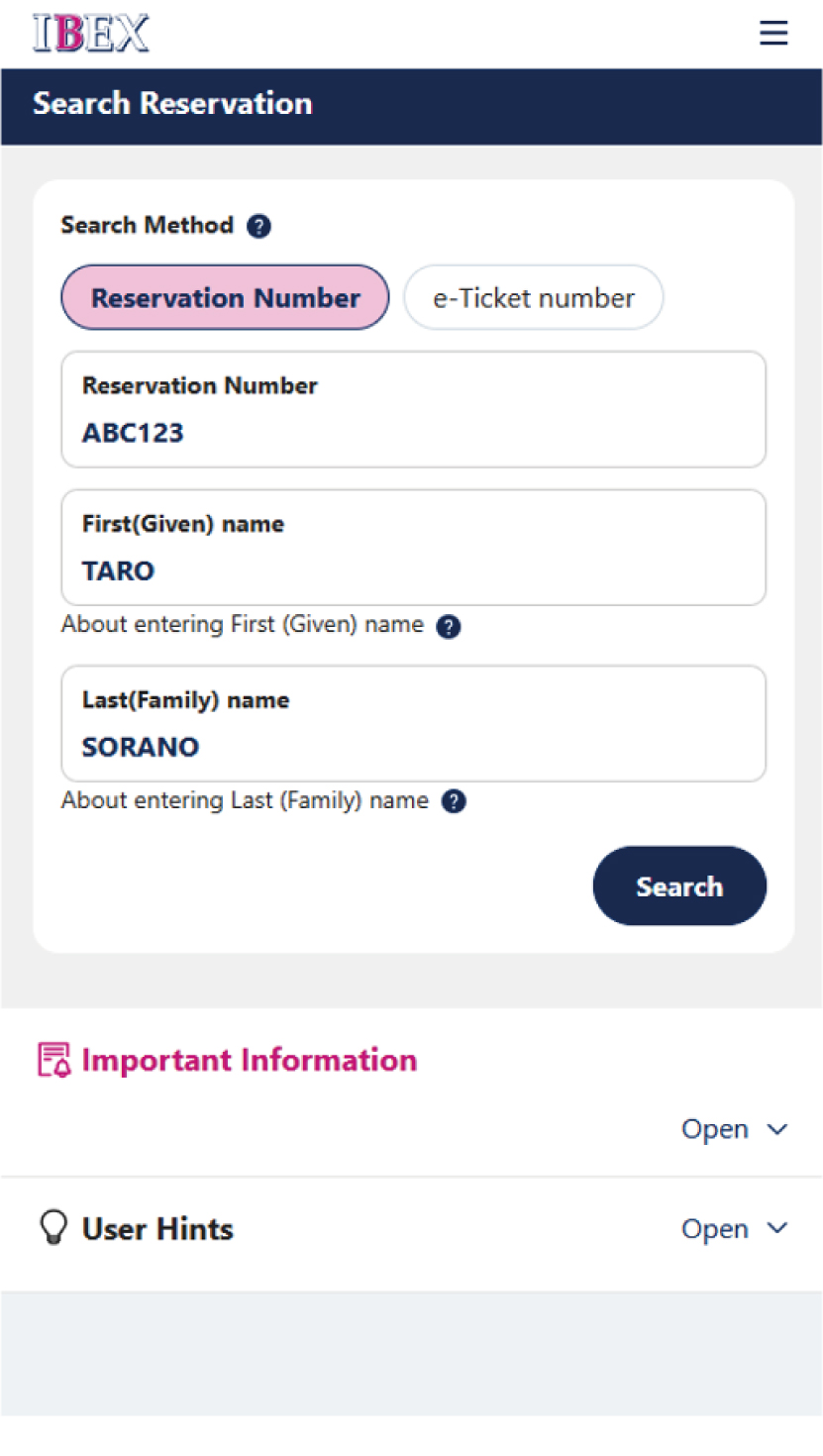
Enter your reservation details and search for the reservation.
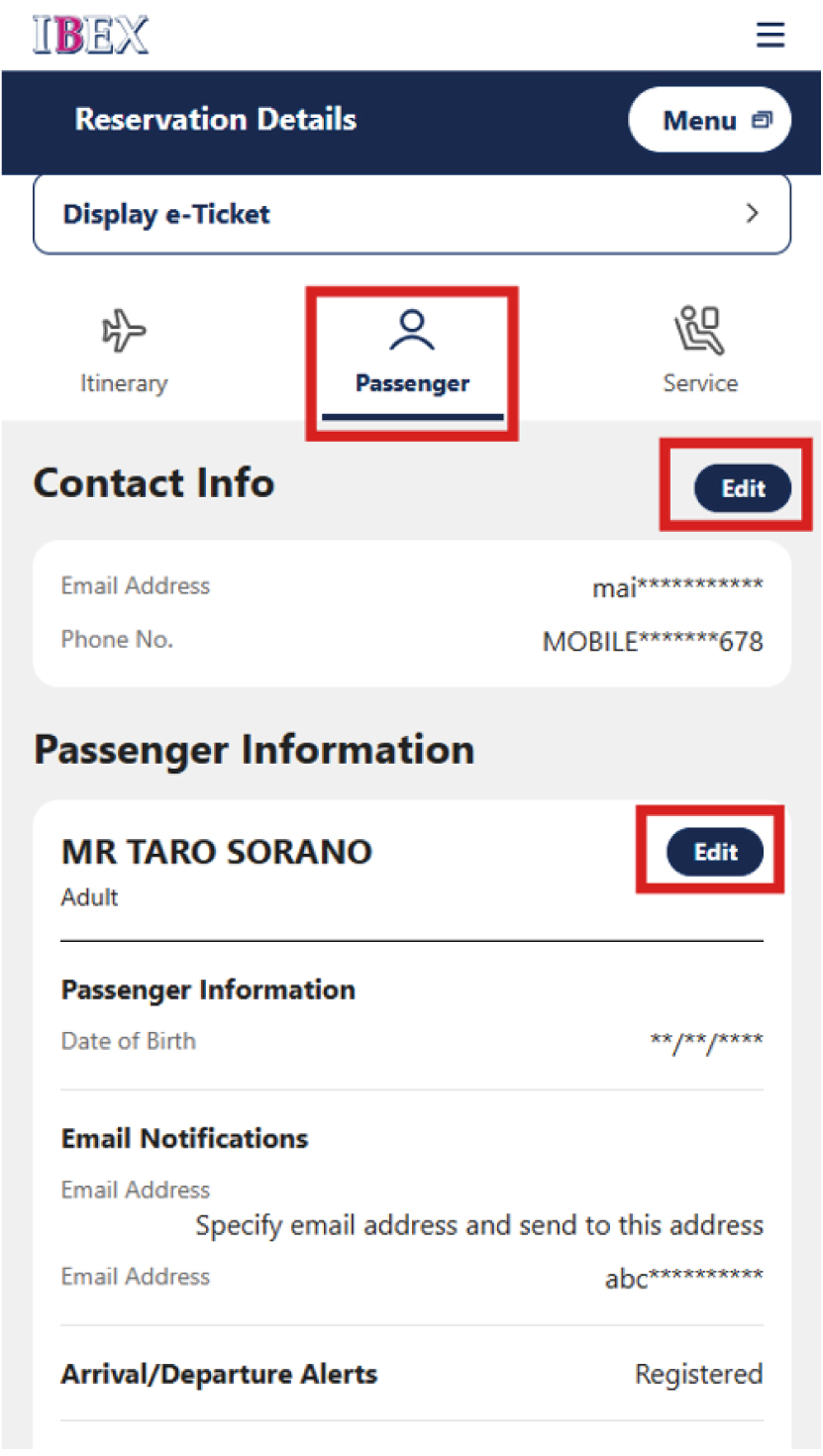
You can change your email address via [Edit] on the [Passenger] tab.
To change the email address for reservation-related notifications, select [Edit] in Contact Info. To change the email address for boarding and flight status notifications, select [Edit] in Passenger Information.
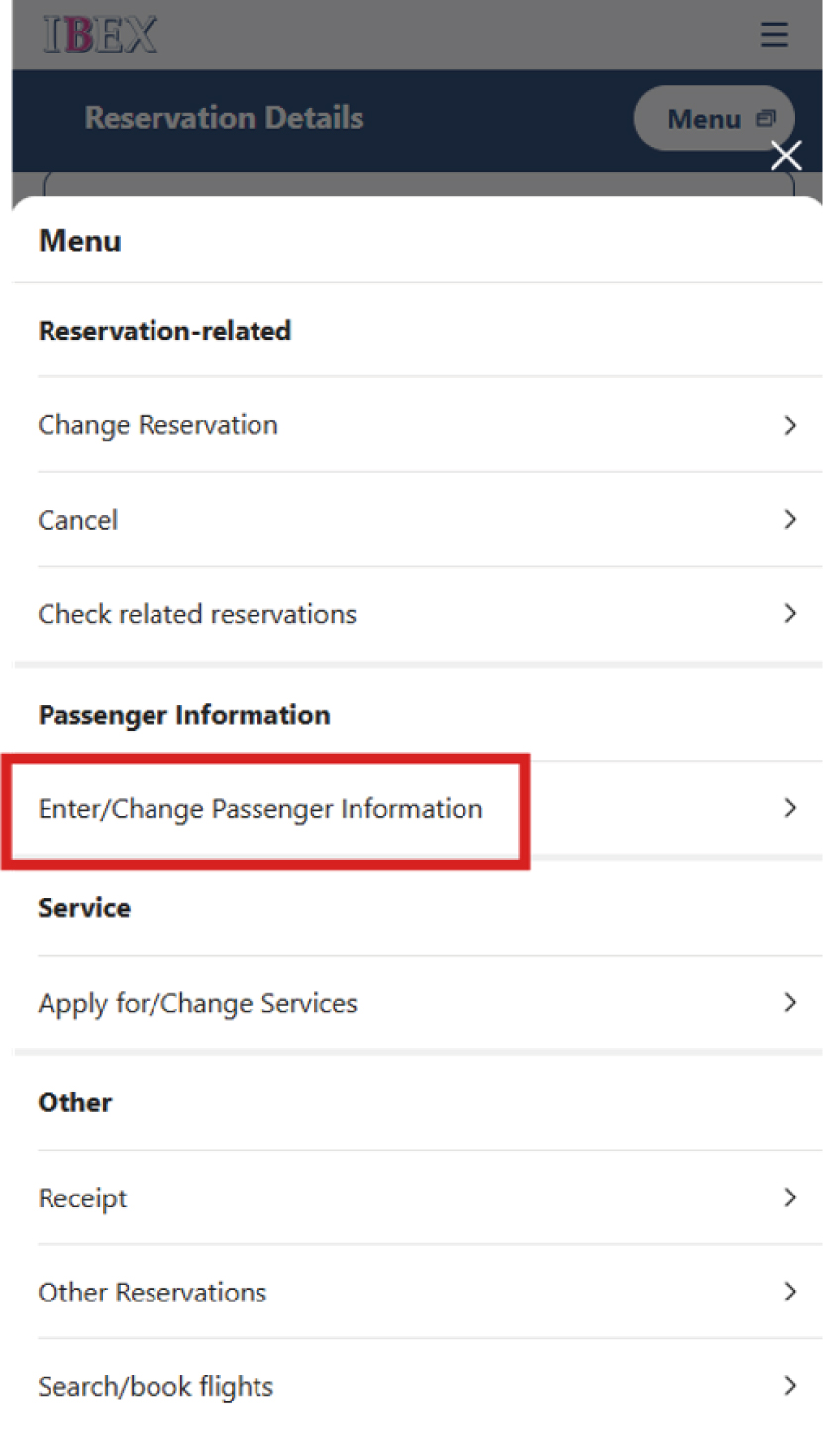
You can also change your email address via [Entry/Change Passenger Information] from the [Menu] in the upper-right corner of the screen.
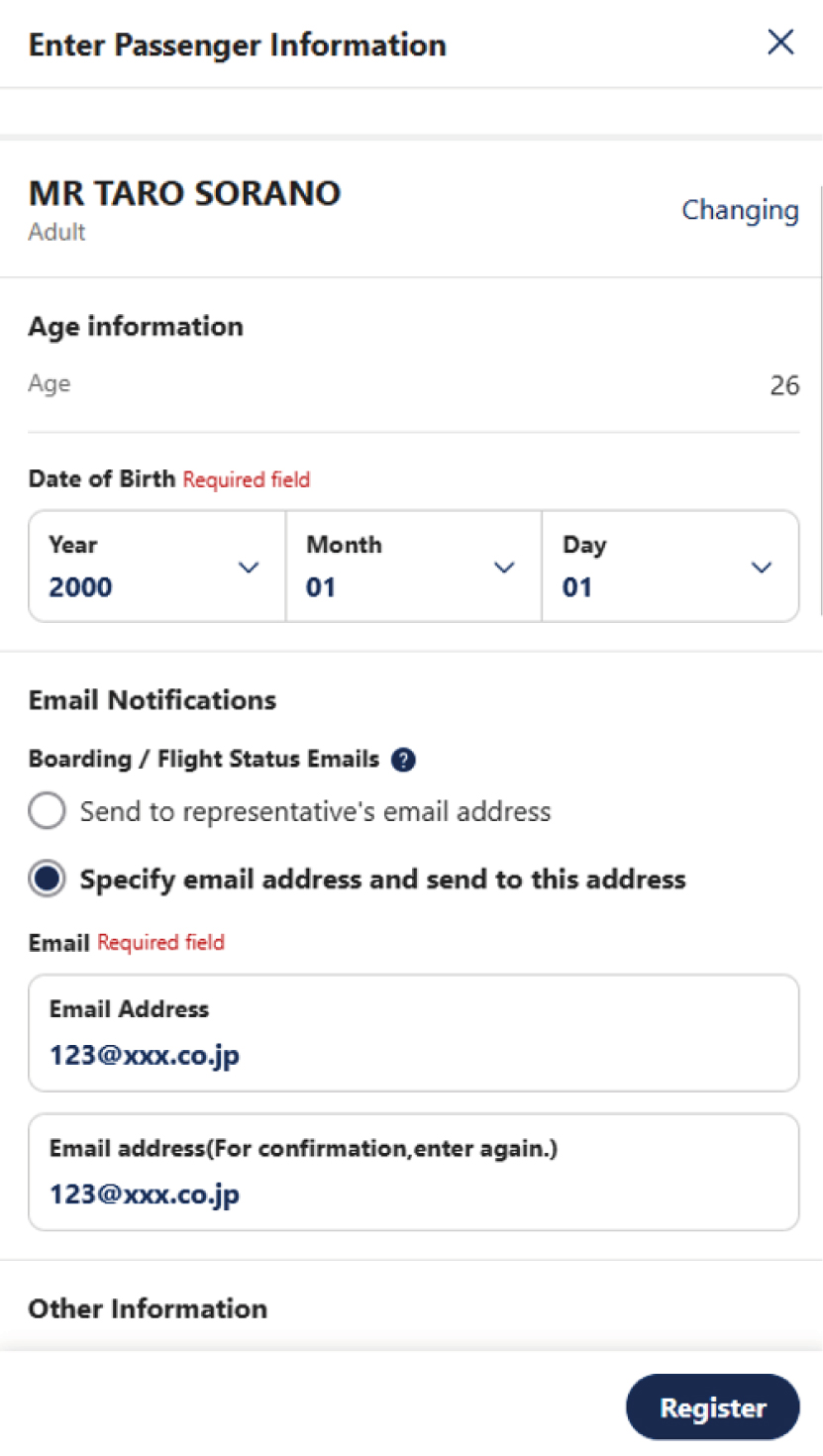
Enter the email address you would like to use and press [Register].
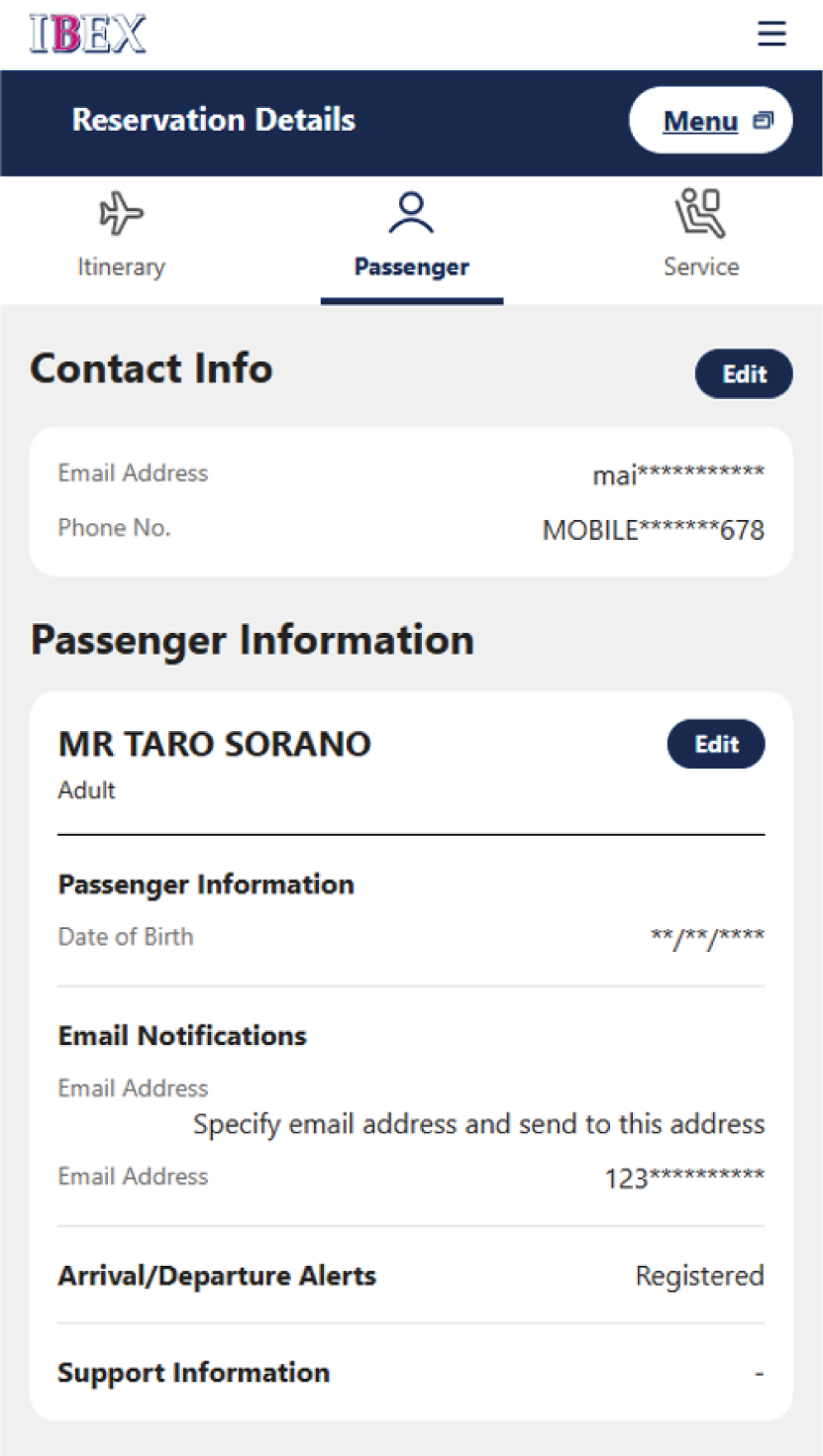
The change is complete once the new email address is reflected on the screen.
These are the steps to register an email address when using Online Check-in for a reservation purchased through channels other than the IBEX website, such as when checking in online within 24 hours prior to departure.
The email address for boarding / flight status notifications cannot be changed via [Online Check-in]. It can be changed via [Reservation Confirmation].
For information on how to register an email address for reservation-related notifications, please refer to the section above titled [Registering an email address for reservation and boarding / flight status notifications via Reservation Confirmation].
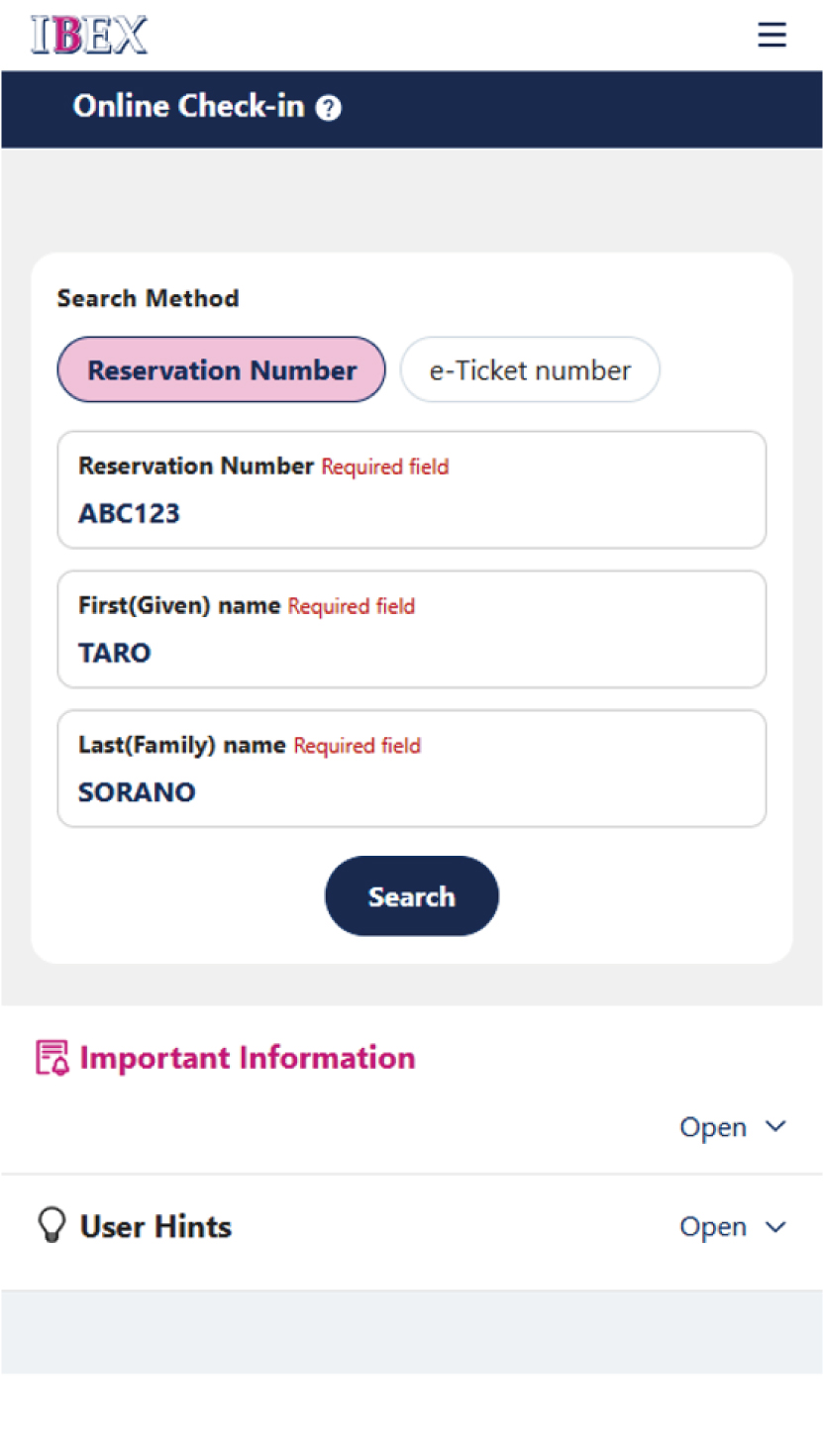
Search for your reservation via [Online Check-in] on IBEX website.
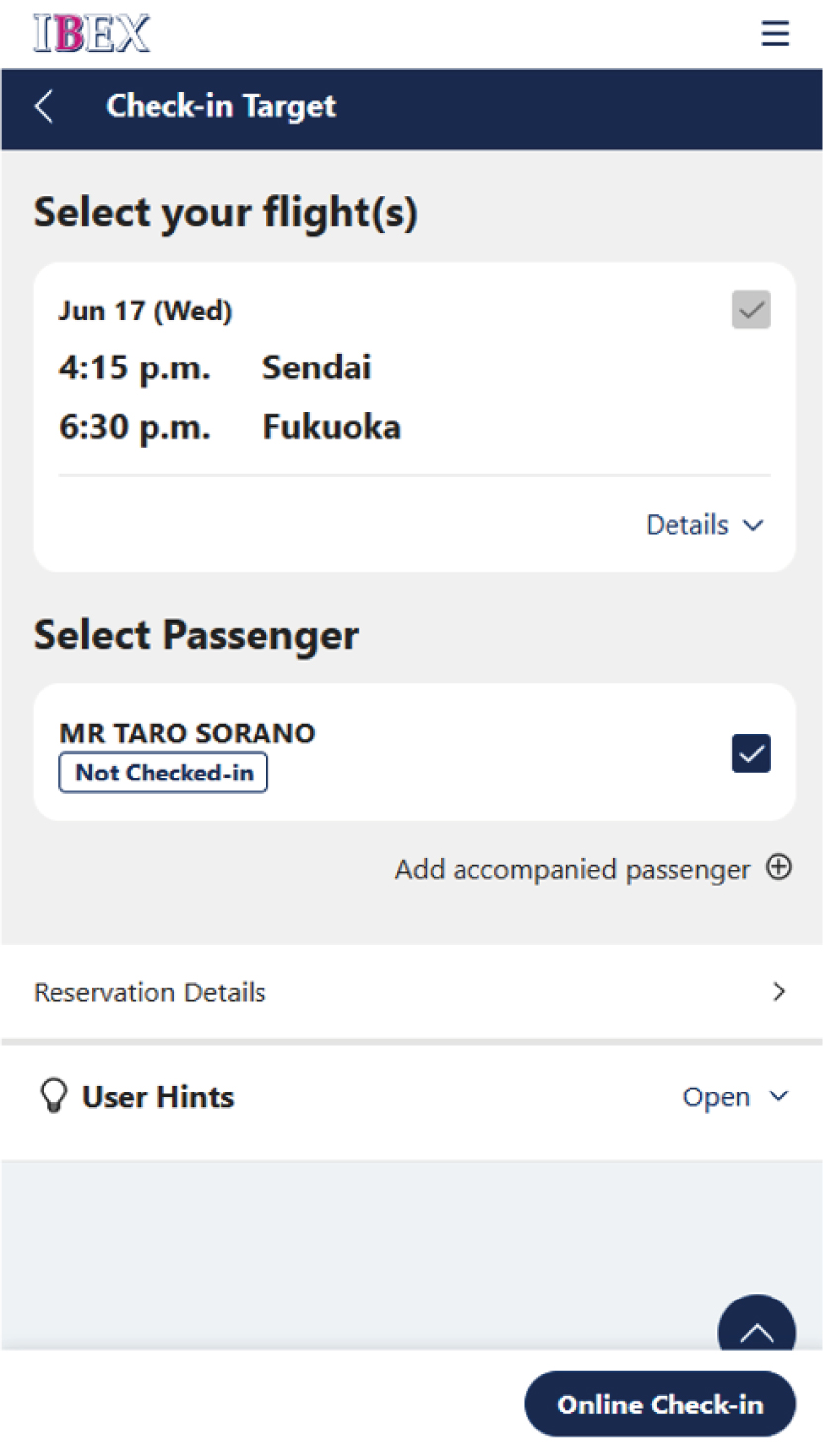
Select the applicable flight and press [Online Check-in].
If you have already completed online check-in and would like to change your email address, proceed to Step ④.
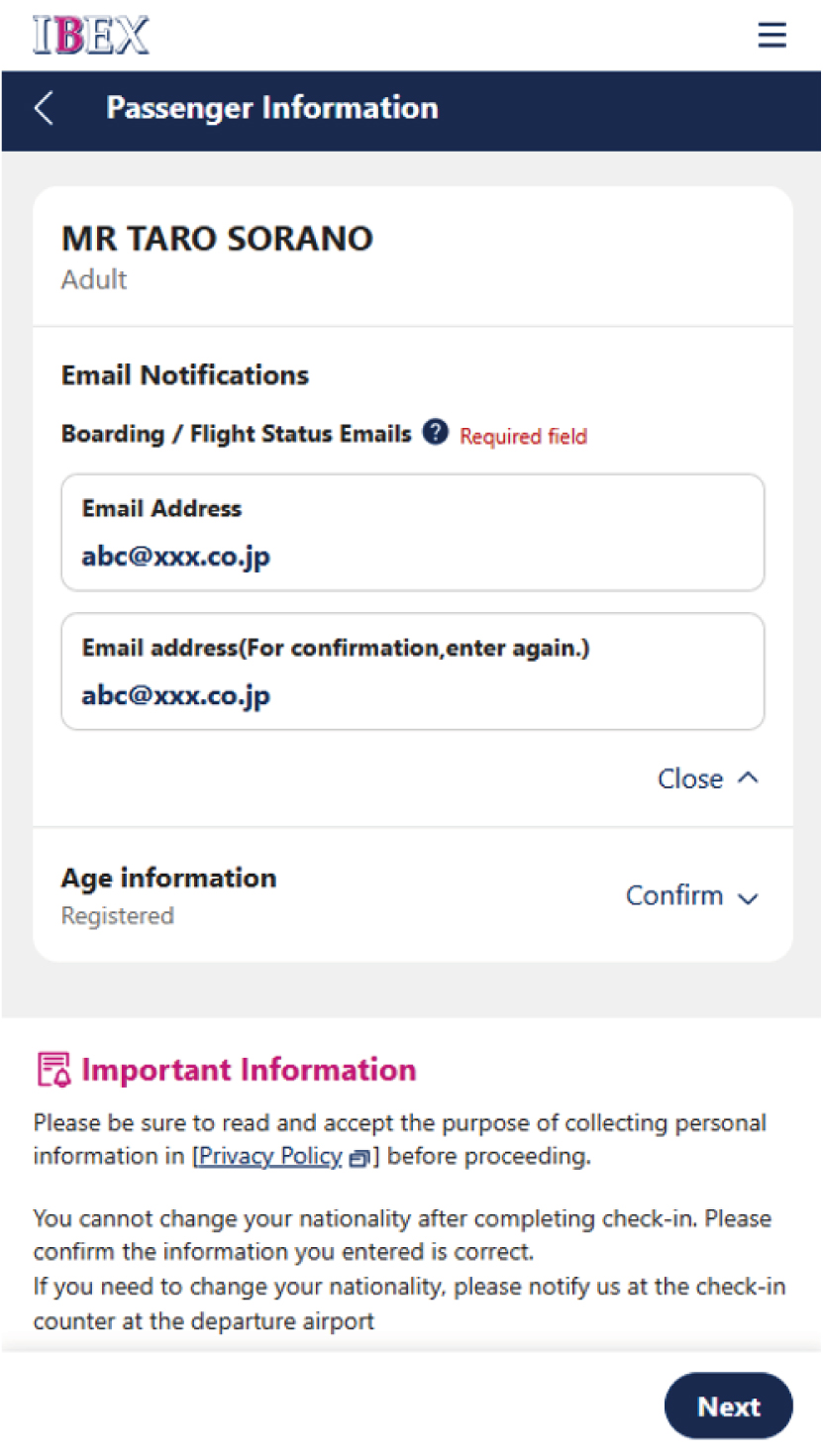
<First-time access after booking>
The email address entry screen will be displayed. Enter the email address where you would like to receive boarding and flight status notifications, then press [Next].
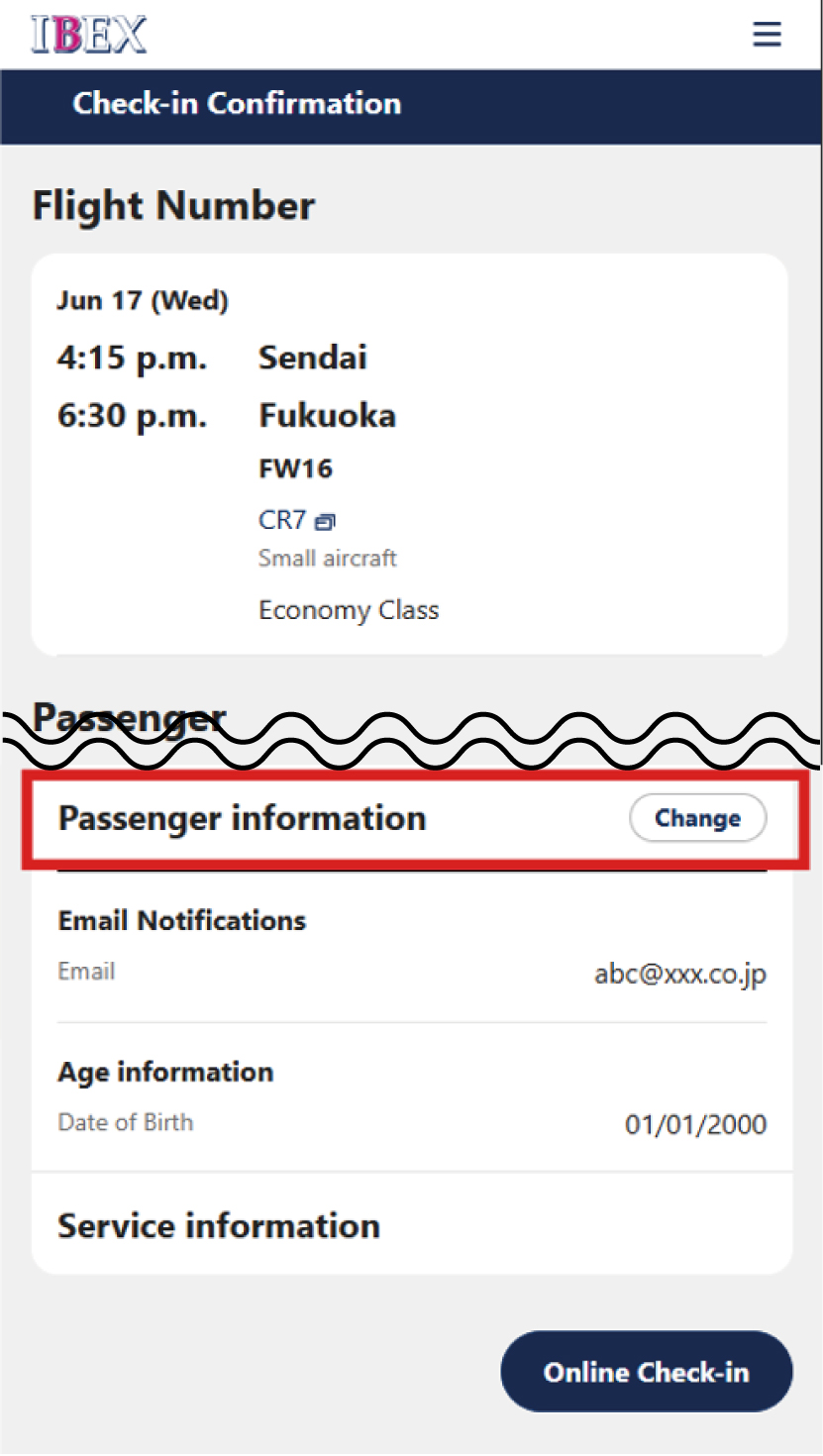
<Changing your email address>
On the Check-in Confirmation screen, press [Change] in Passenger Information.
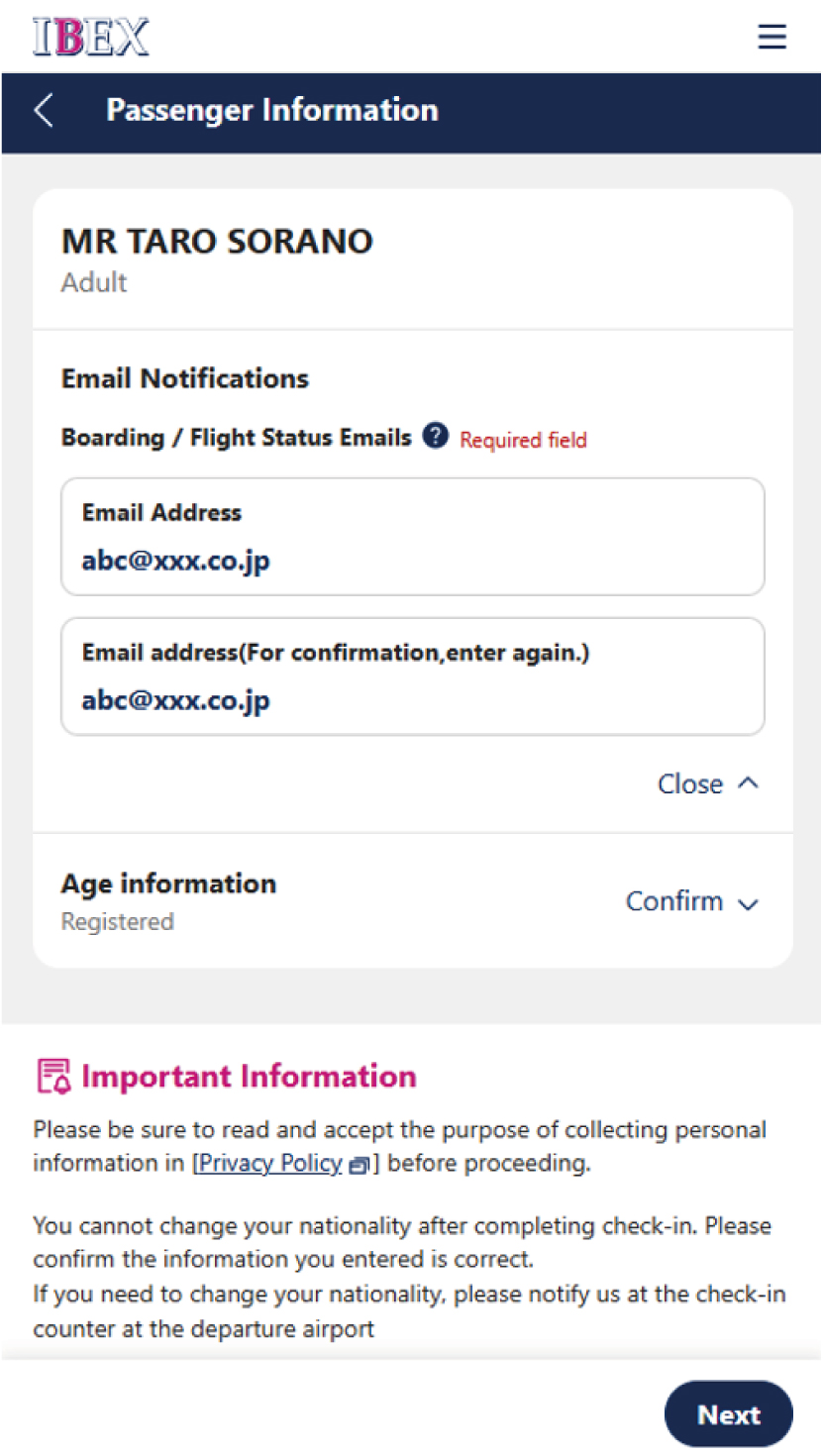
<Changing your email address>
Tap [Email Notifications], enter the email address you would like to use, and then press [Next].
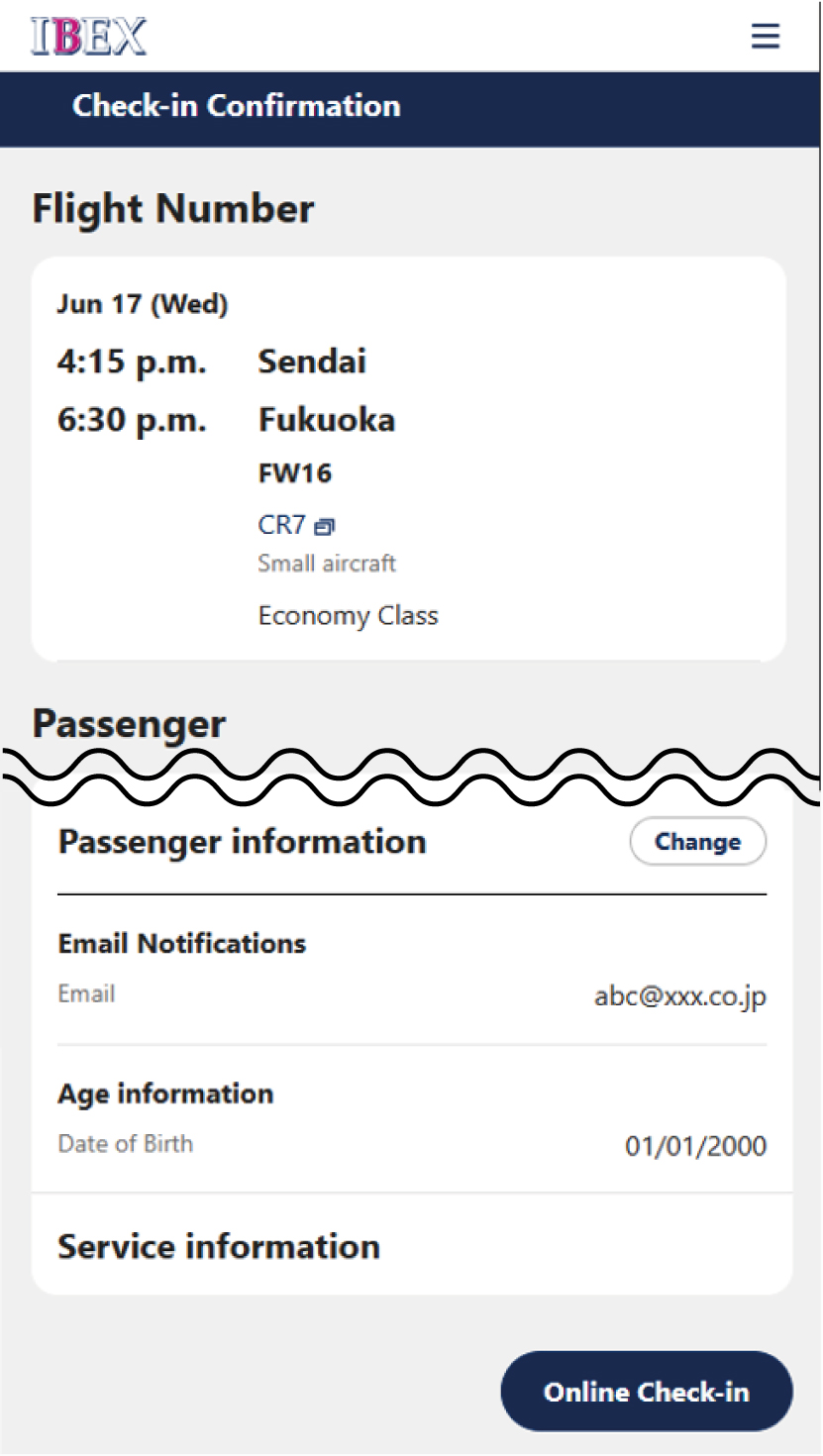
Confirm that the entered email address is displayed correctly, then press [Online Check-in].
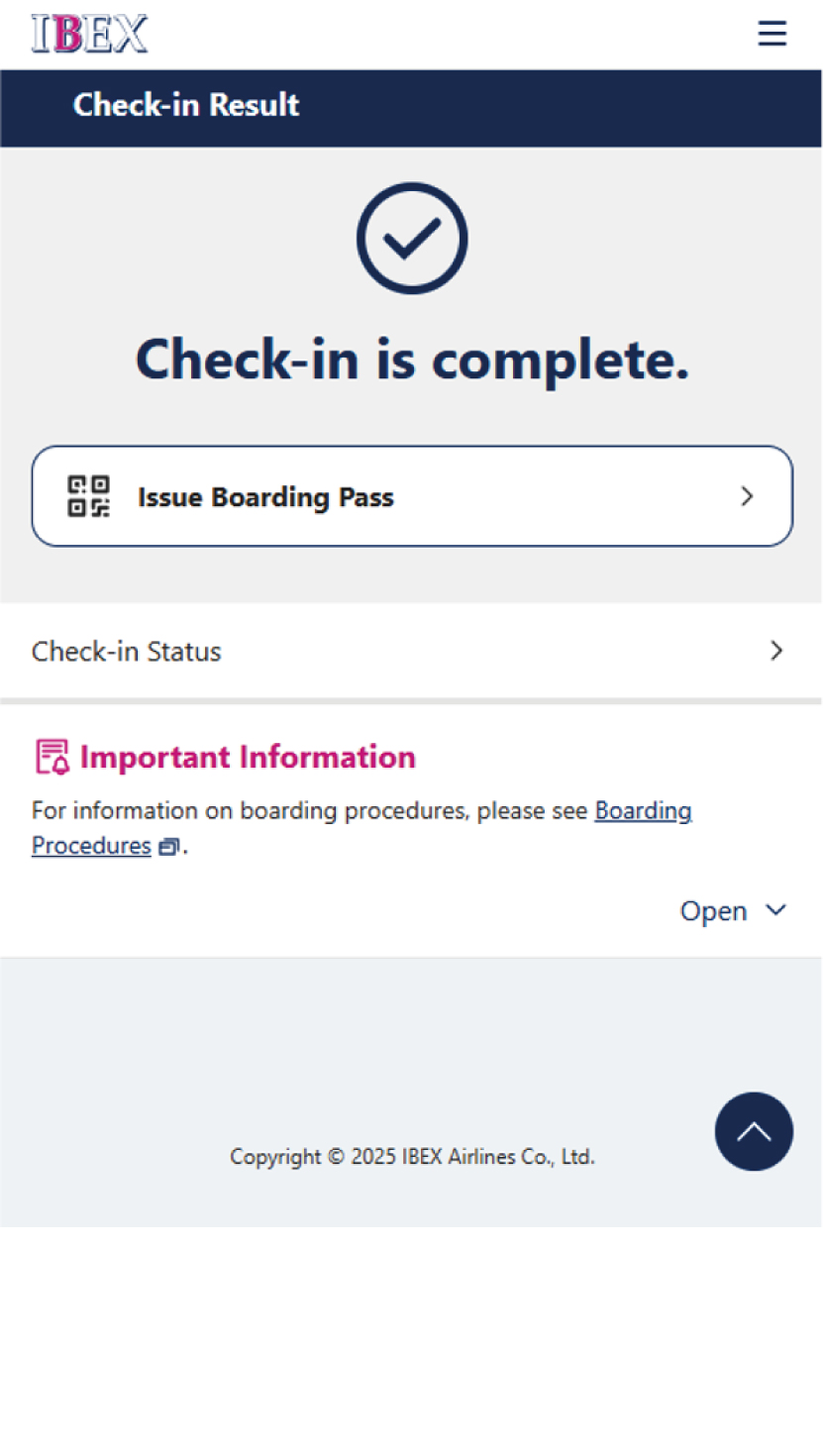
Registration or change of the email address for boarding and flight status notifications is complete.
These are the steps to change the registered email address after completing Online Check-in.
If you would like to change the email address for reservation-related notifications, please use [Reservation Confirmation] on IBEX website.
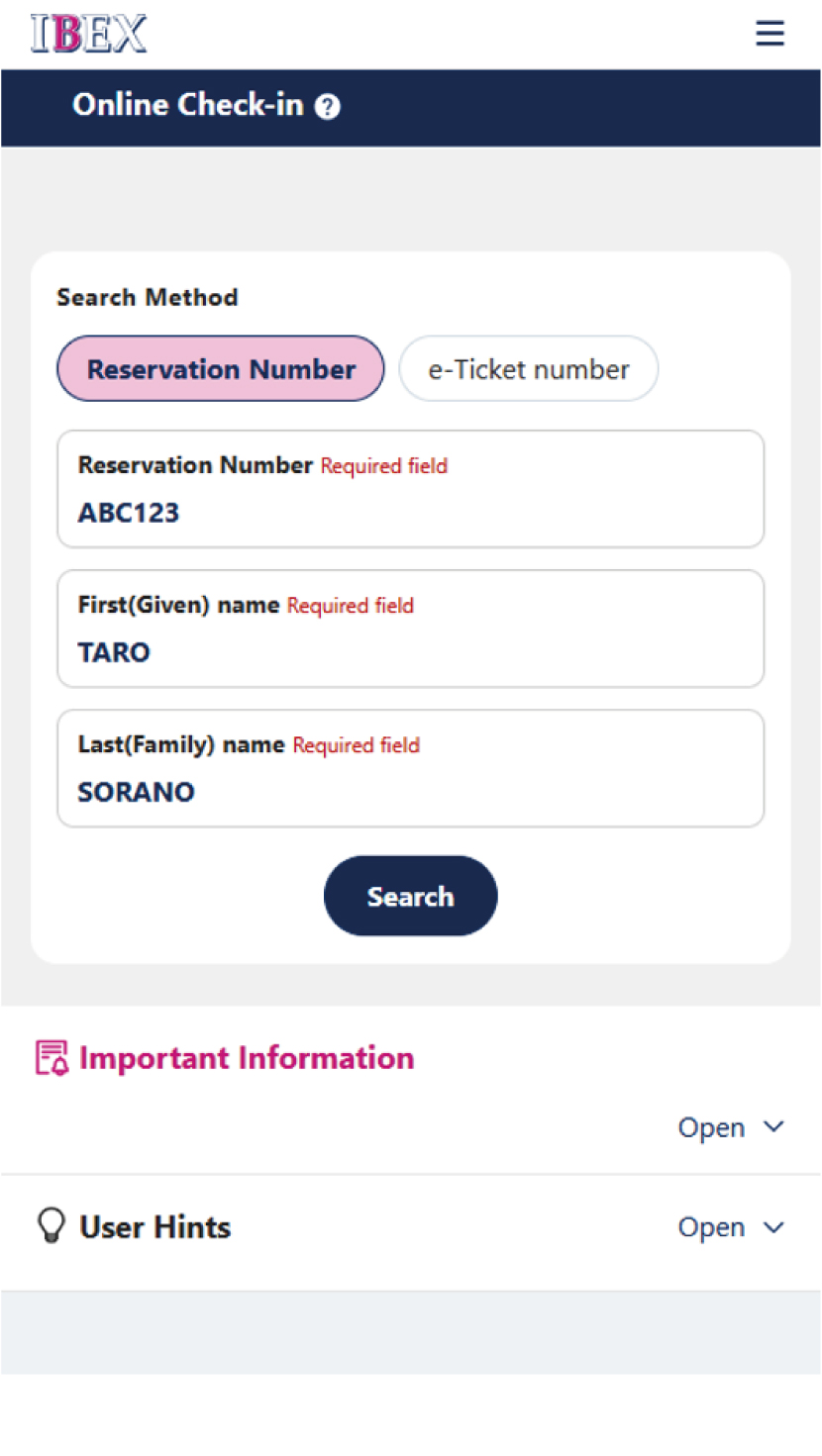
Search for your reservation via [Online Check-in] on IBEX website.
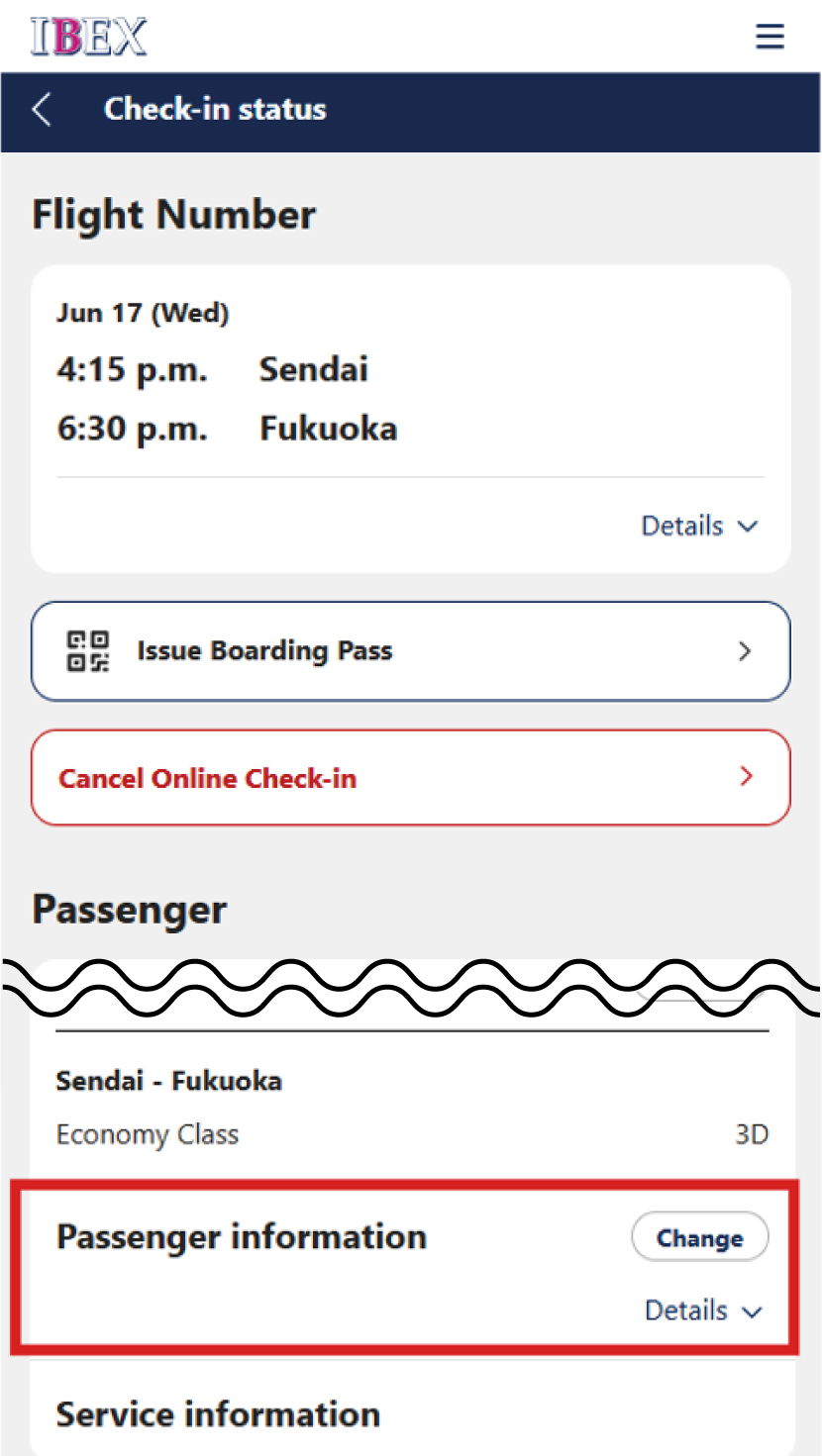
On the Check-in Status screen, tap [Change] in Passenger Information.
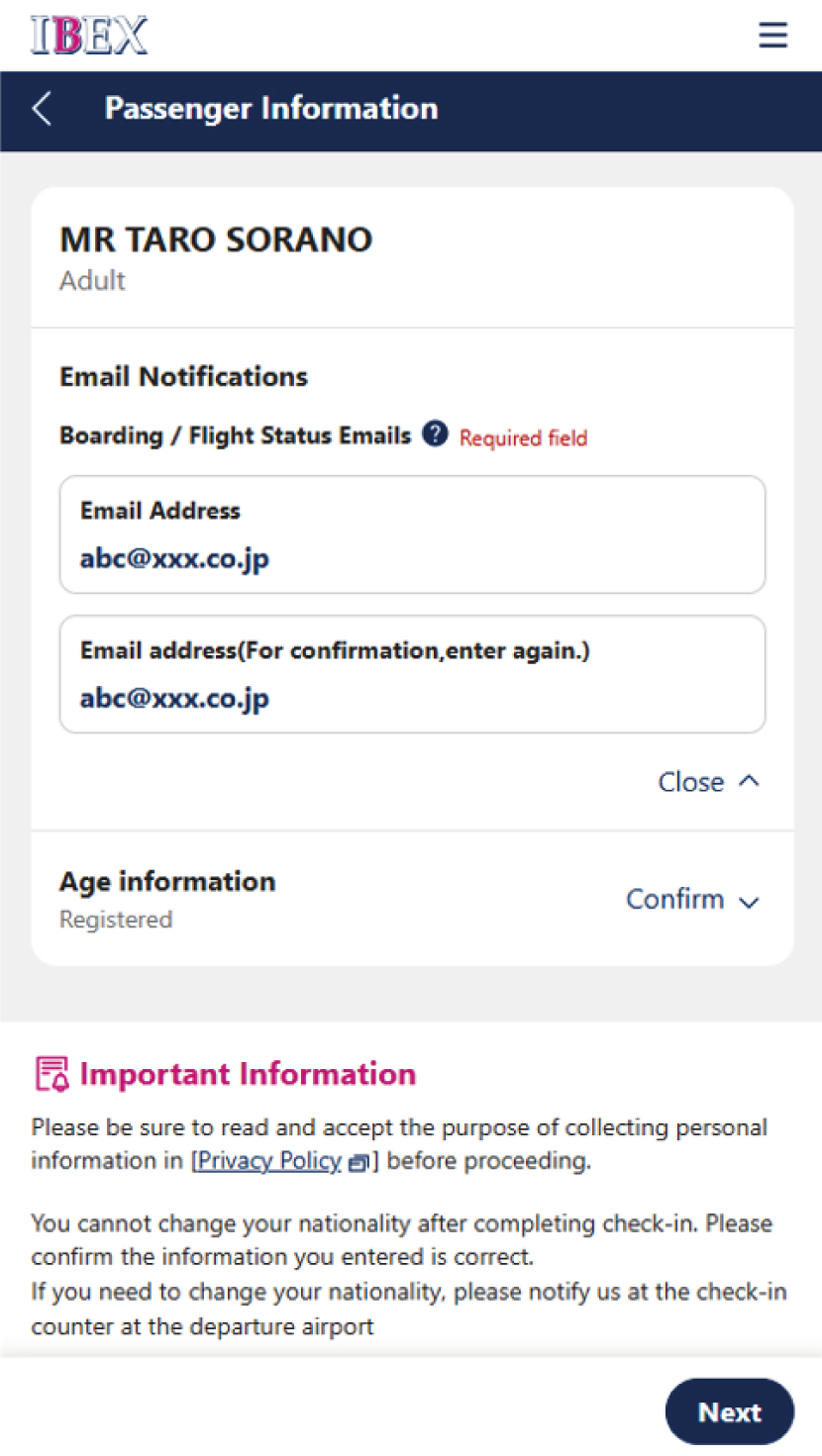
Tap [Email Notification] to display the input field, enter the email address you would like to use, and then press [Next].
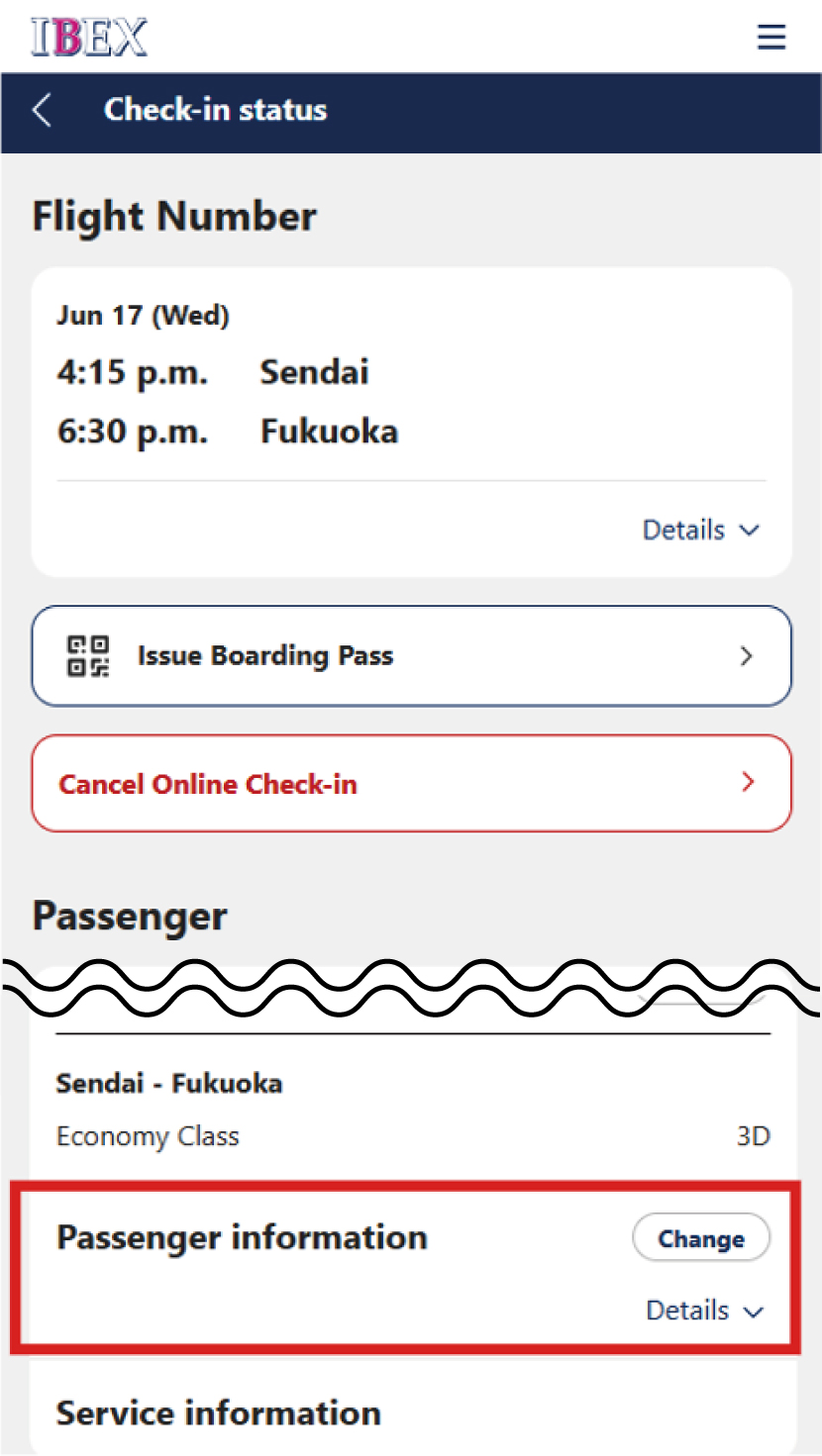
On the Check-in Status screen, tap [Details] in Passenger Information.
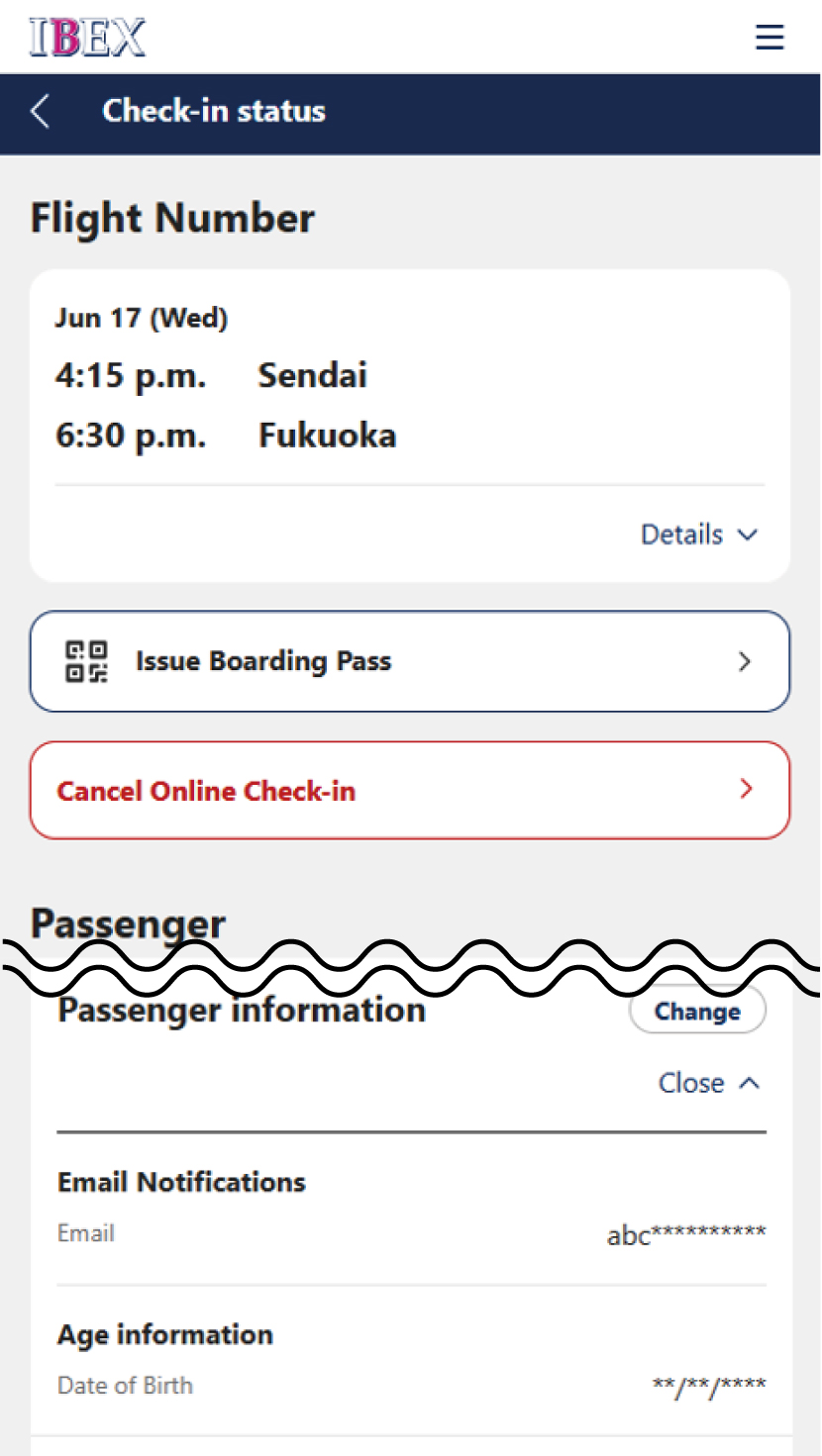
Confirm that the new email address is displayed correctly. The change is now complete.
These are the steps to register arrival and departure notification emails for customers who are not traveling and are sending off or picking up passengers.
You can register via [Reservation Confirmation] on IBEX website. Registration is not available via [Online Check-in].
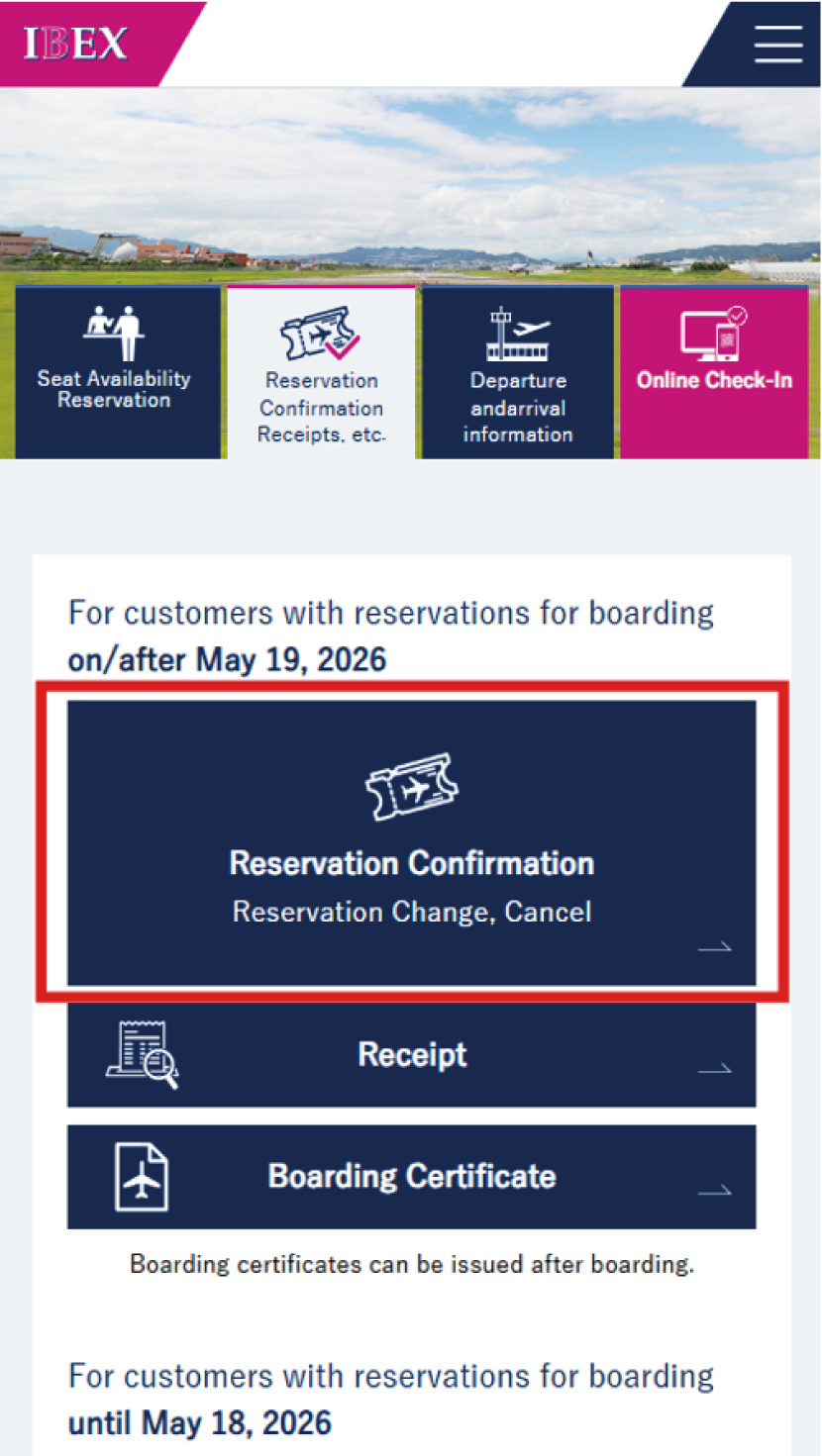
Tap [Reservation Confirmation].
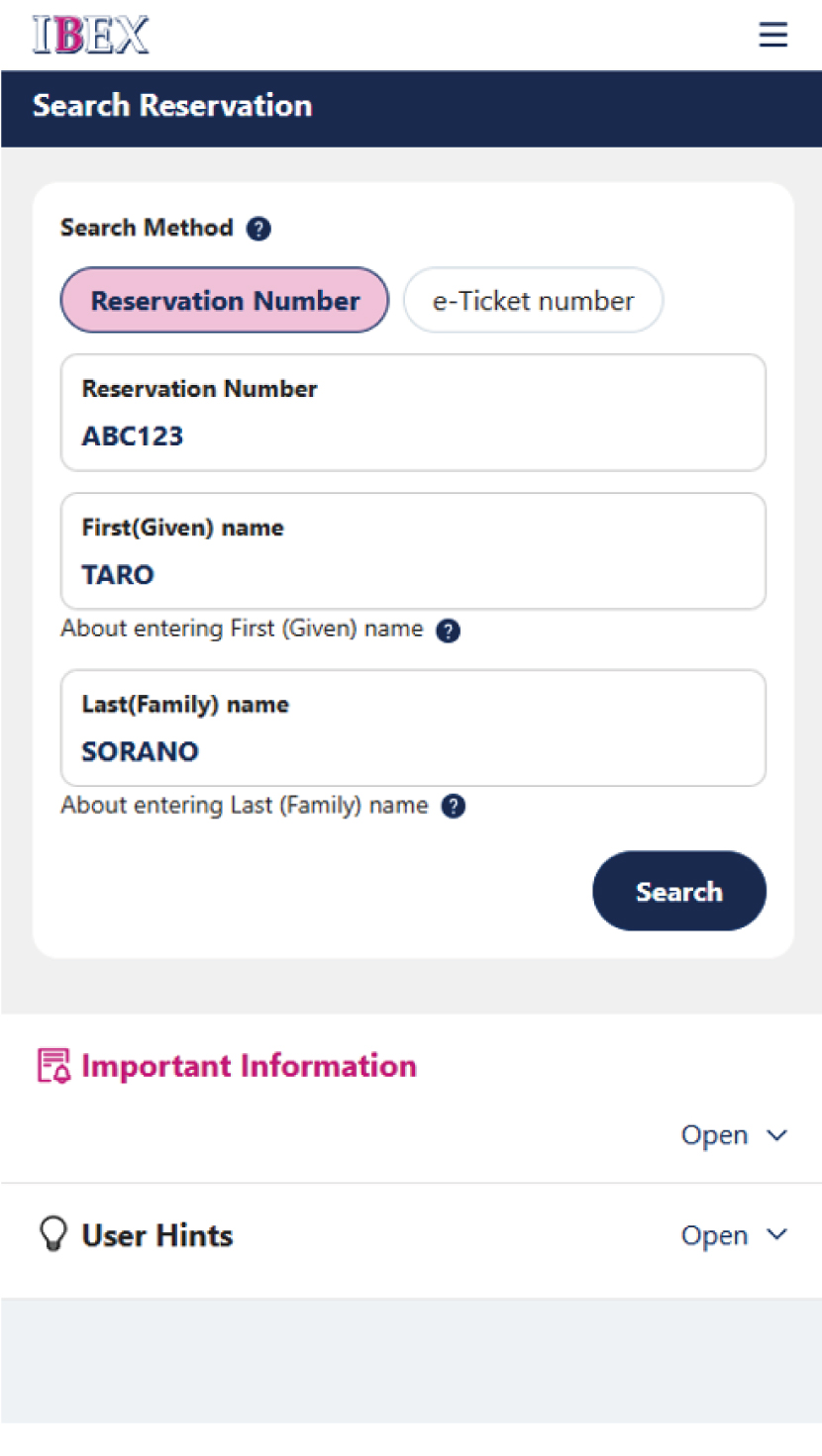
Enter your reservation details and search for the reservation.
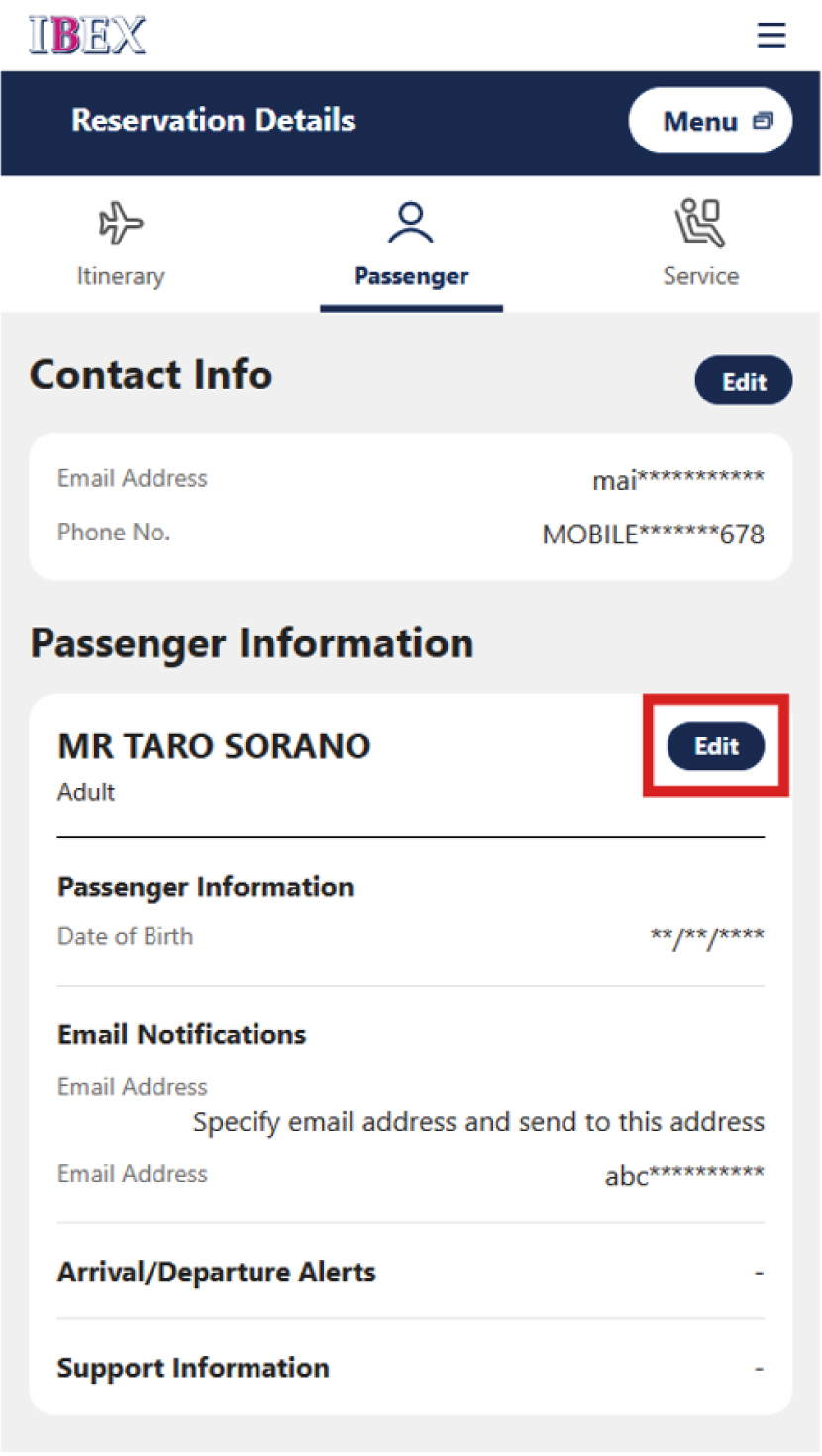
Press [Edit] in Passenger Information on the [Passenger] tab.
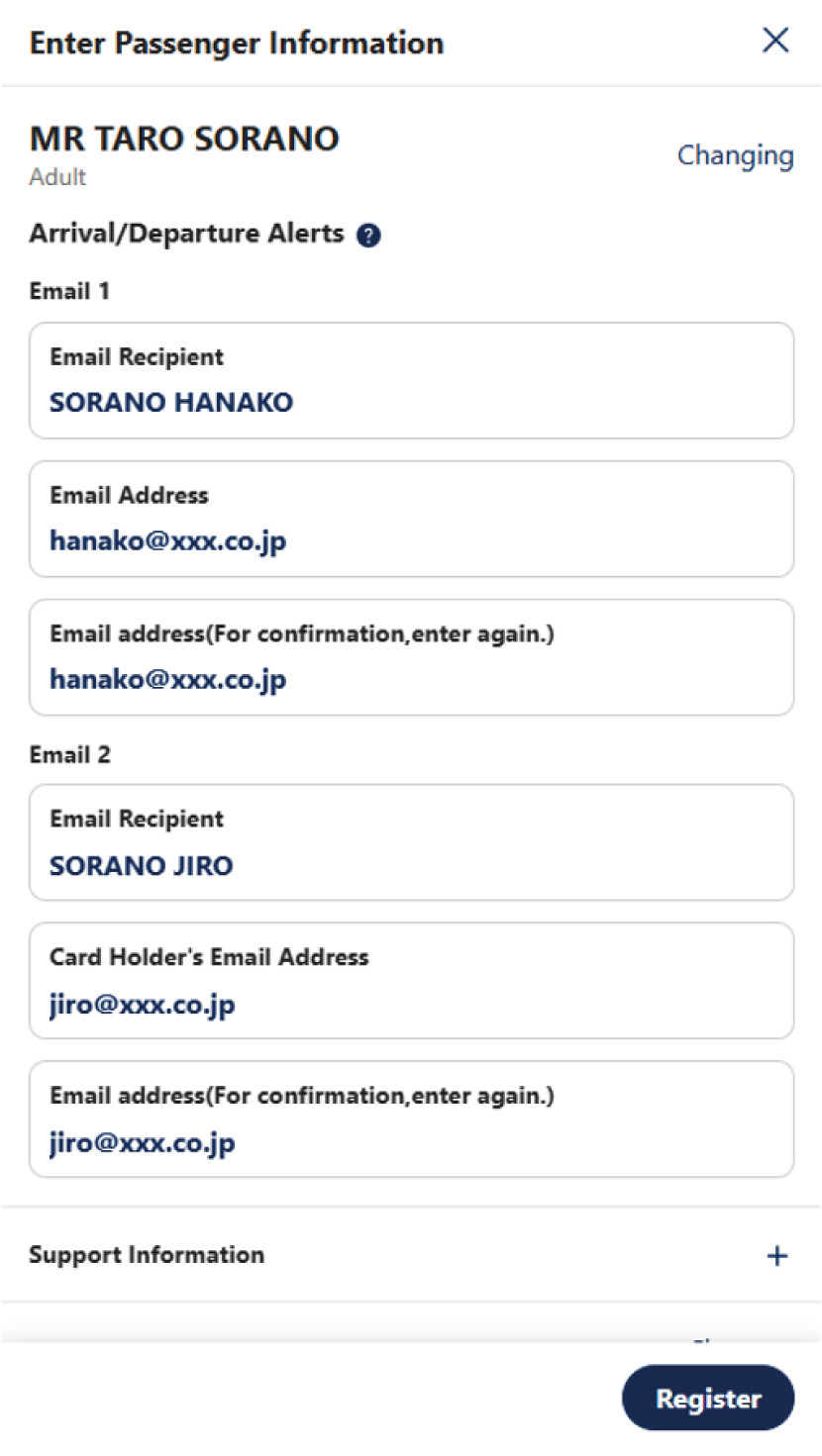
Scroll down and tap [Arrival/Departure Alerts]. Enter the email address where you would like to receive arrival and departure notifications, then press [Register].
Up to two email addresses can be registered.
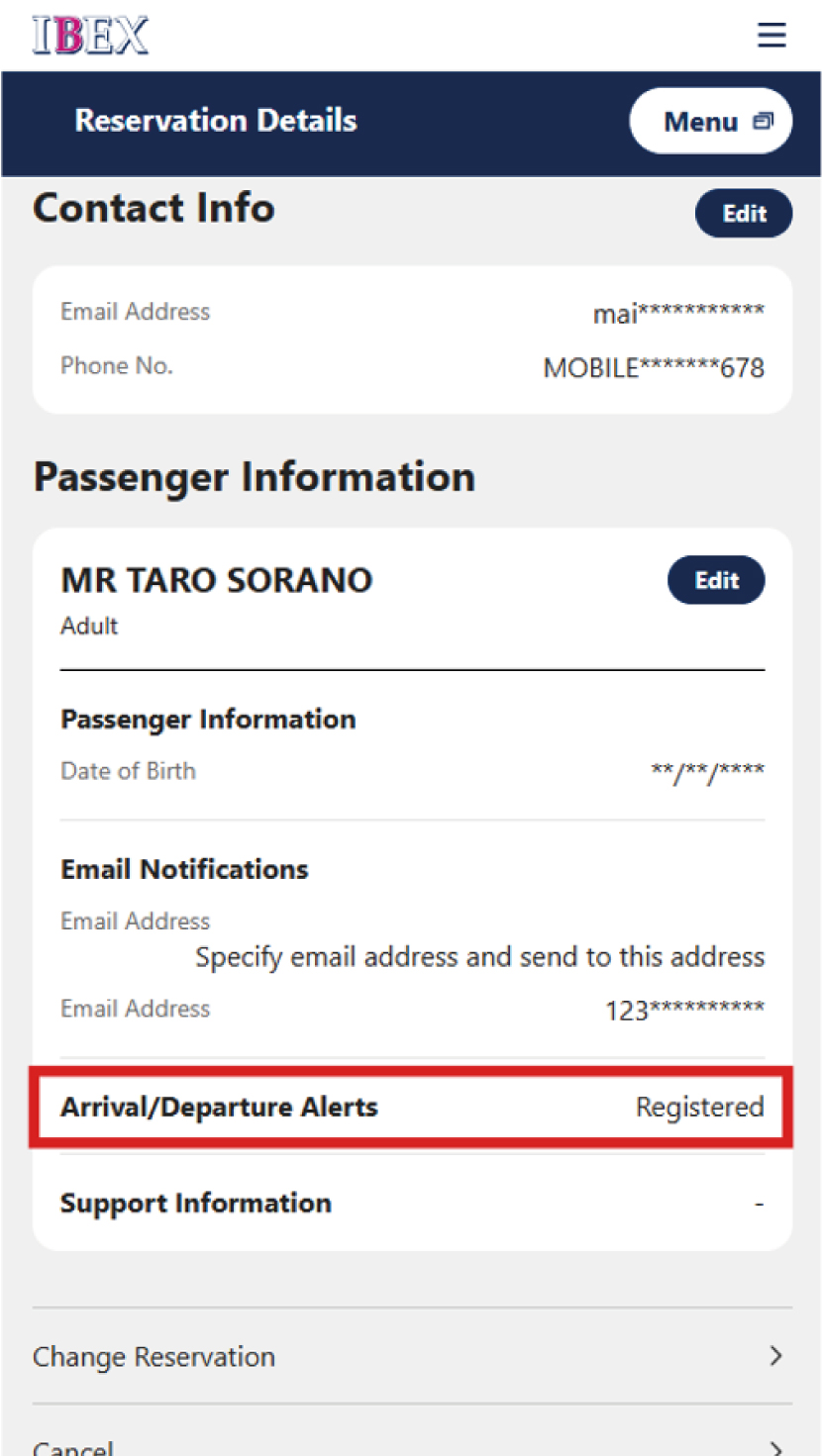
The process is complete once you have confirmed that the Arrival/Departure Alerts status is shown as "Registered" on the screen.
After completing check-in, you can receive your boarding pass either as a PDF displayed on-screen or by email.If you would like to receive your boarding pass by email, please refer to the steps below.
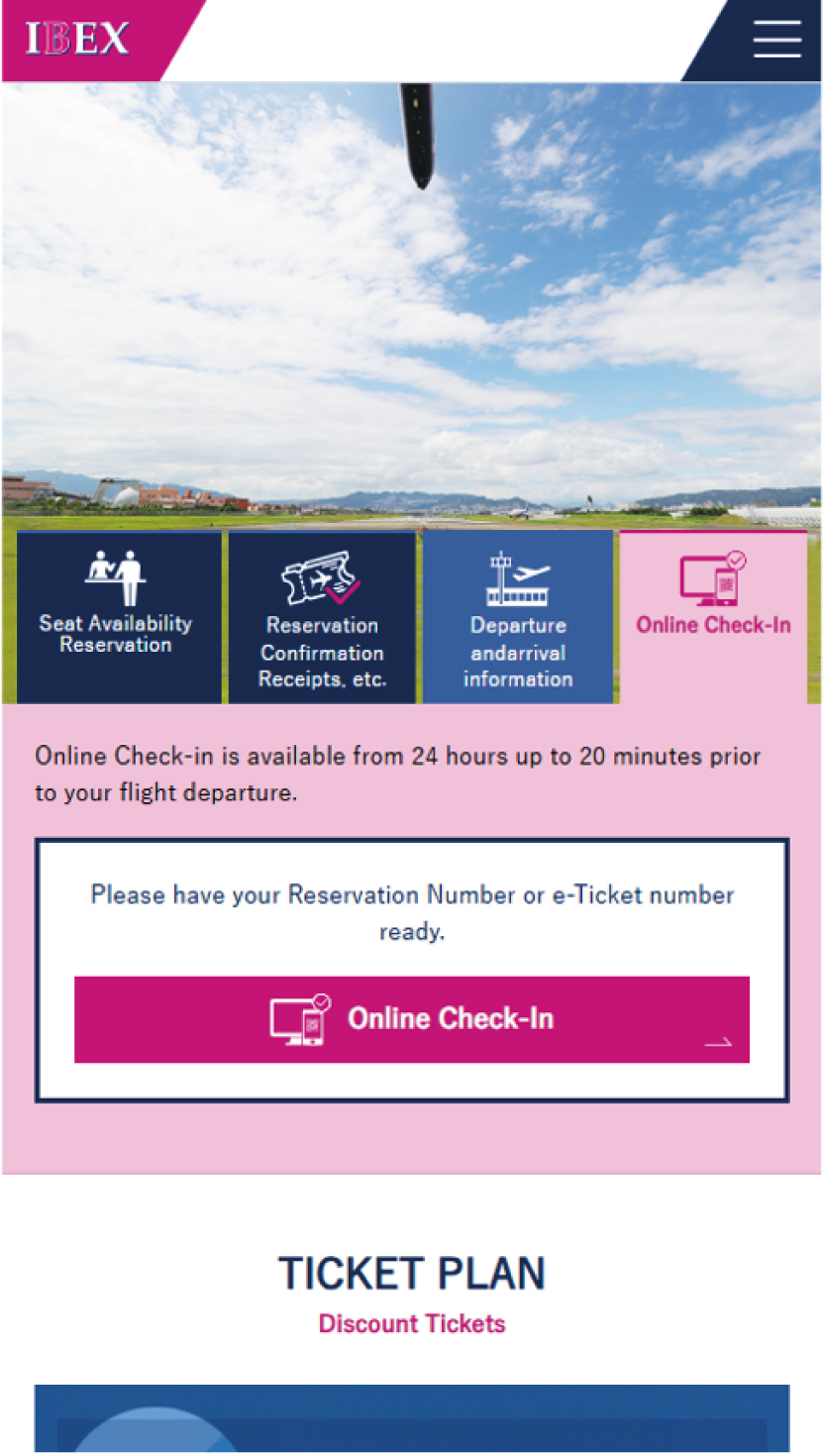
Select [Online Check-in] on IBEX website.
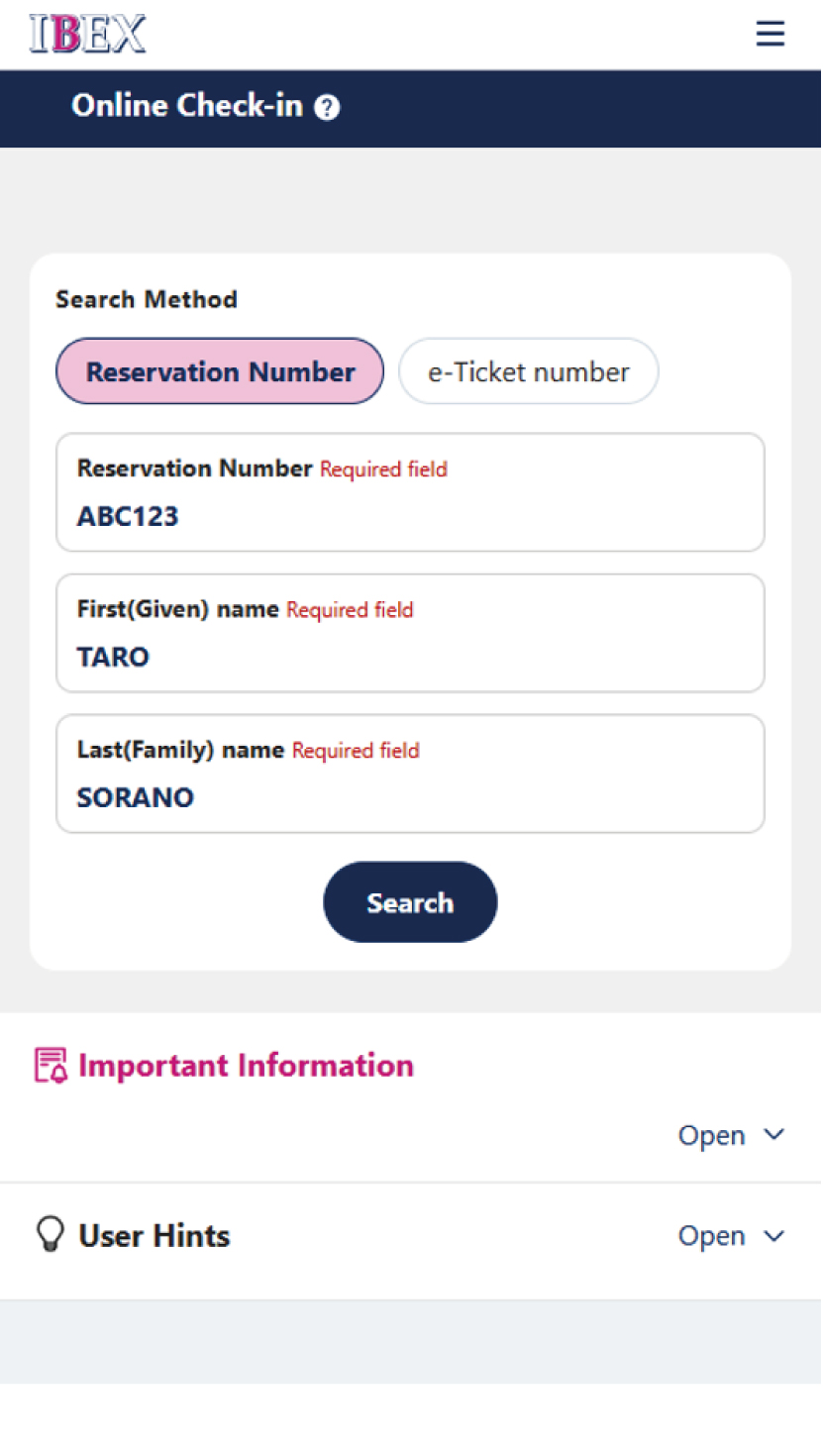
Search for your reservation via [Online Check-in] on IBEX website.
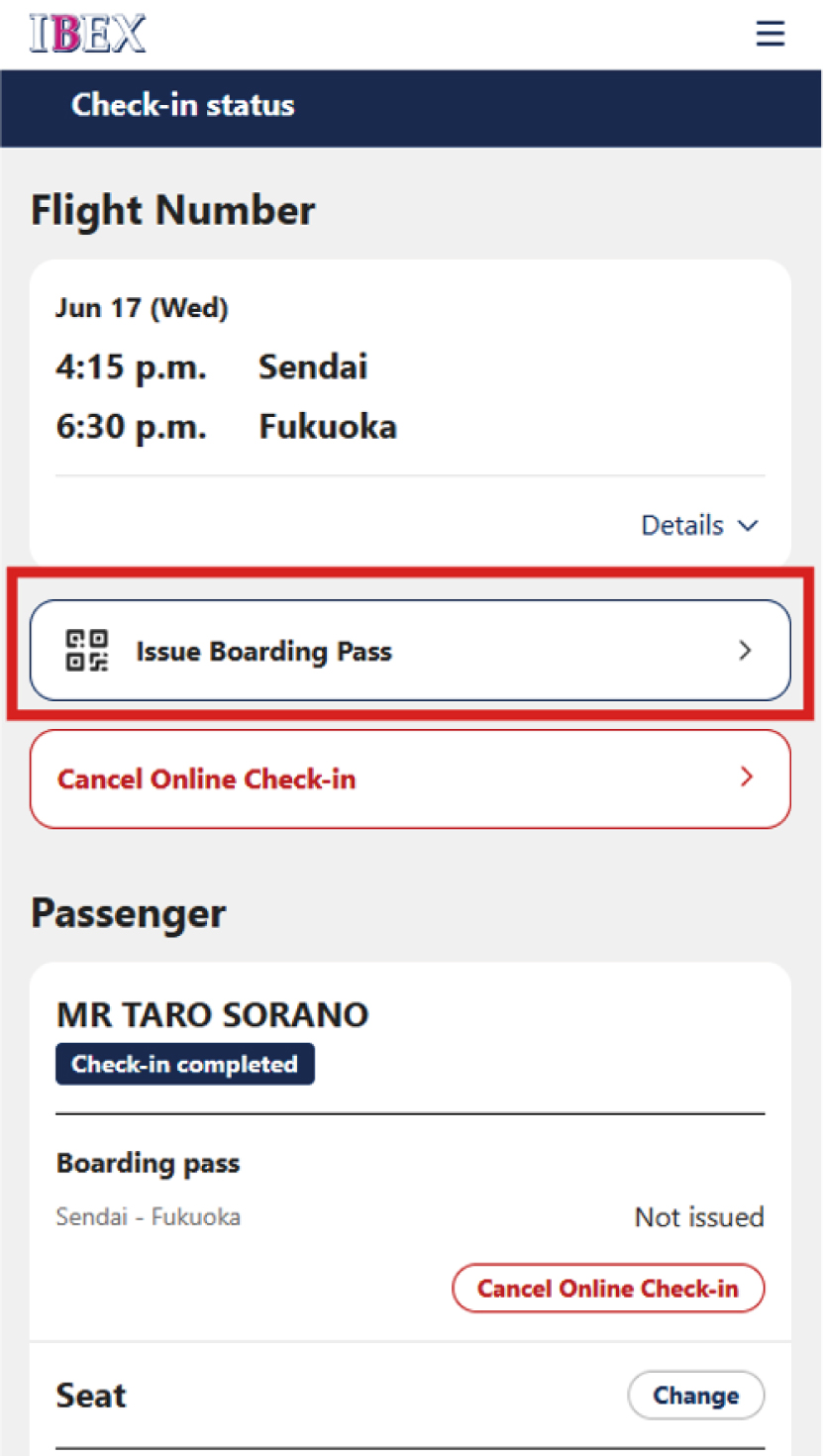
Tap [Issue Boarding Pass].
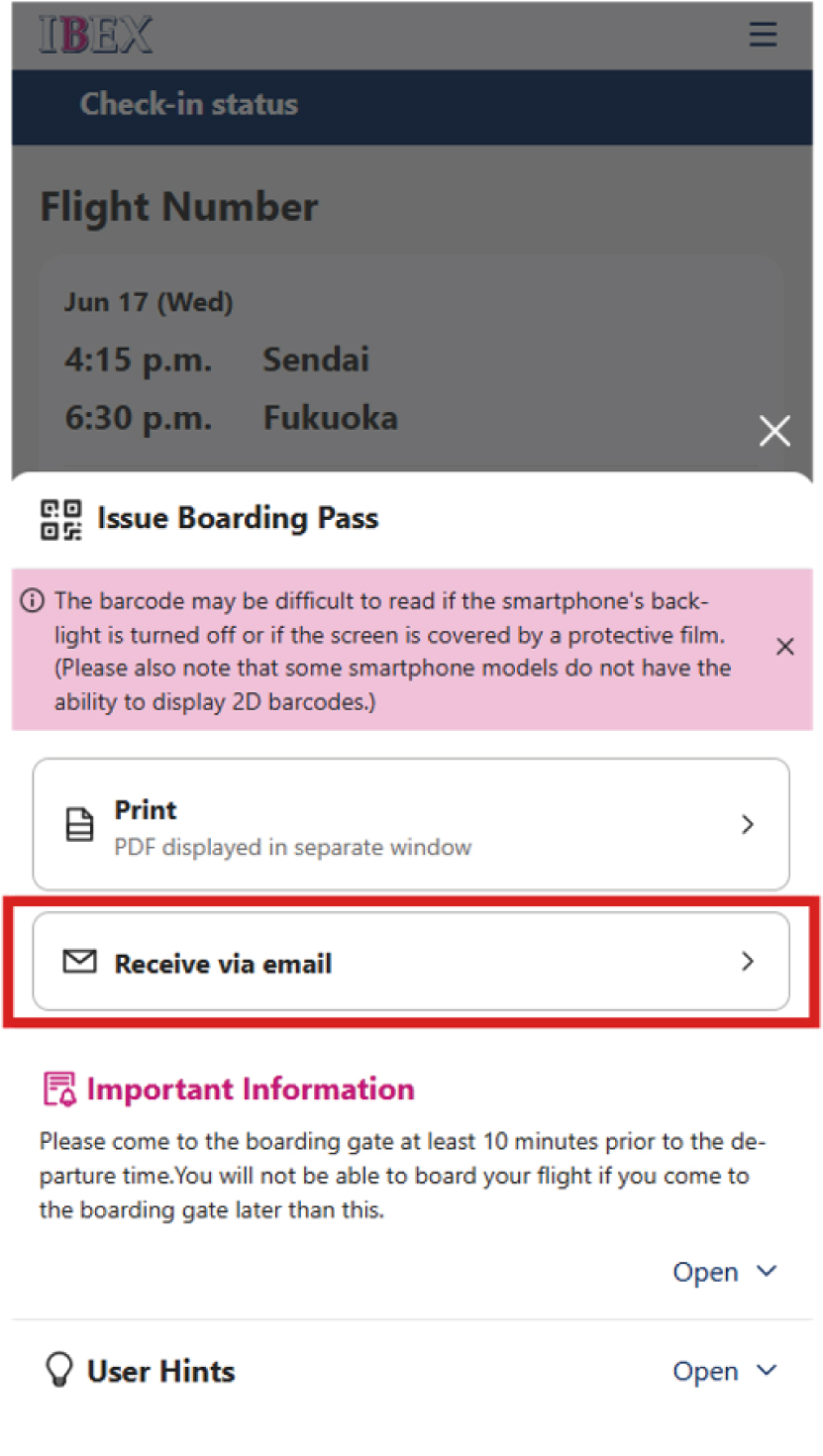
Select [Receive via email].
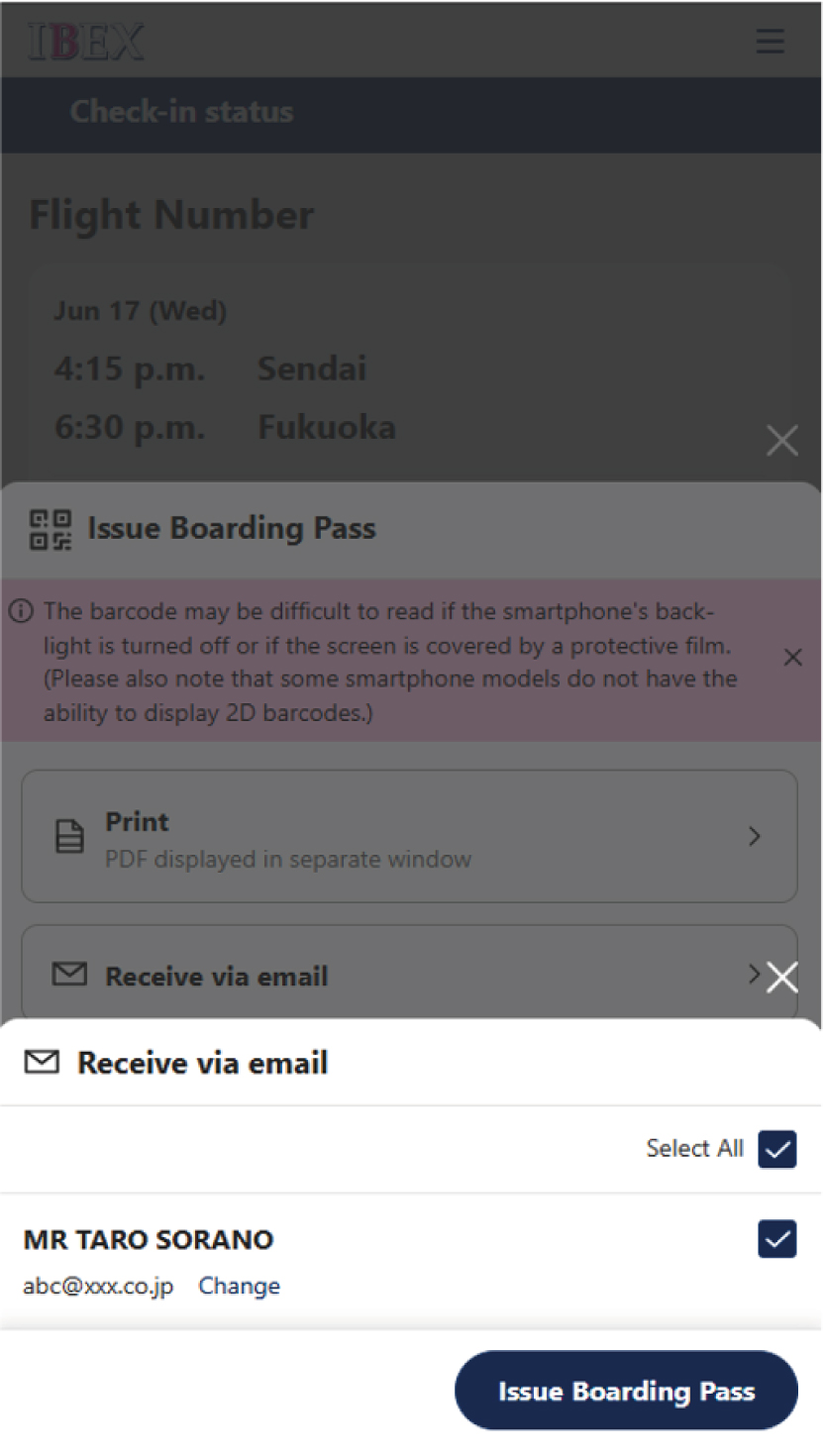
Confirm the email address, select the passenger(s), and press [Issue Boarding Pass].
The email address registered for boarding and flight status notifications will be displayed. If you would like to change the email address for receiving the boarding pass, please [Change] it before issuing the boarding pass.
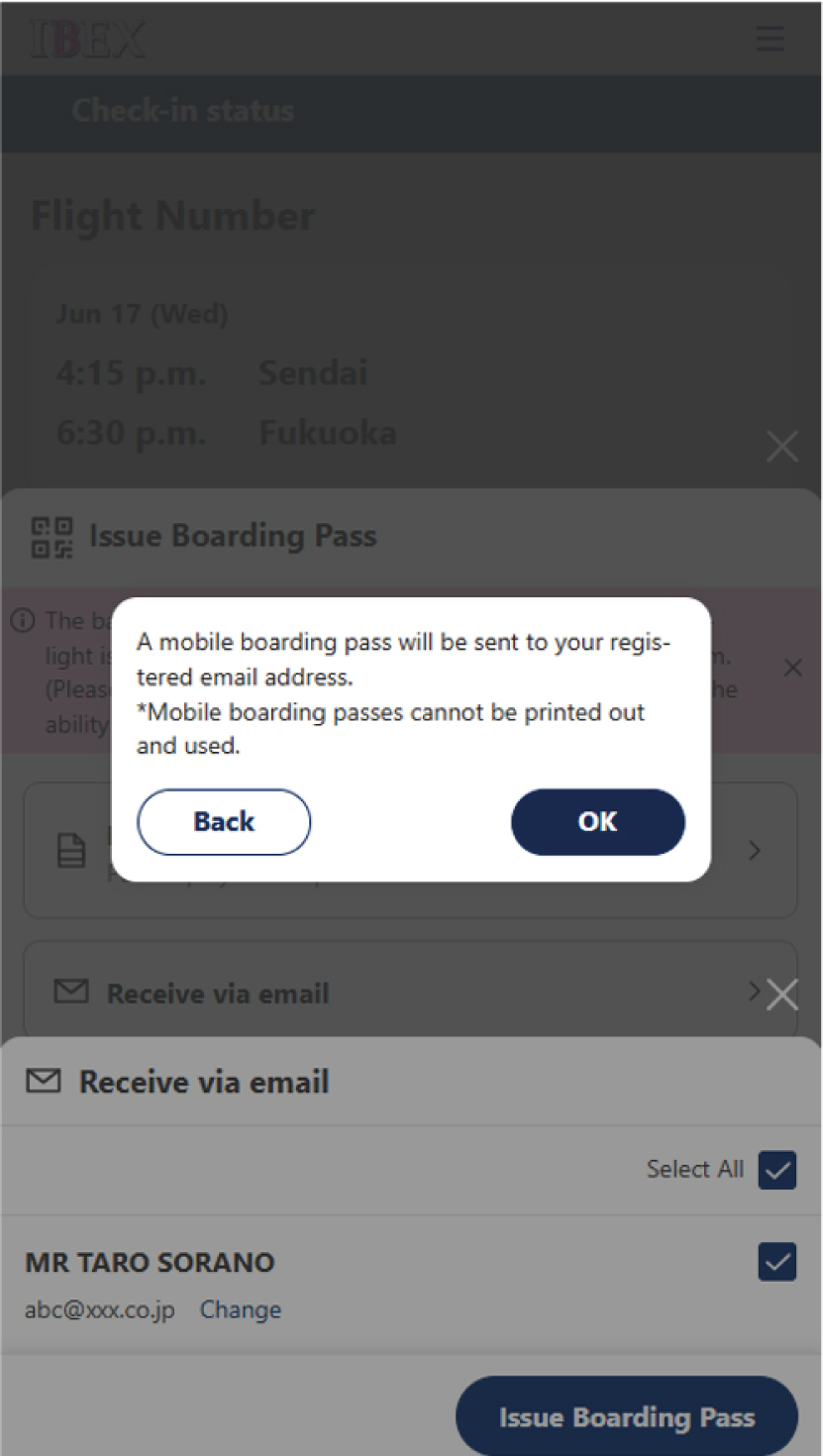
Review the details and press [OK].
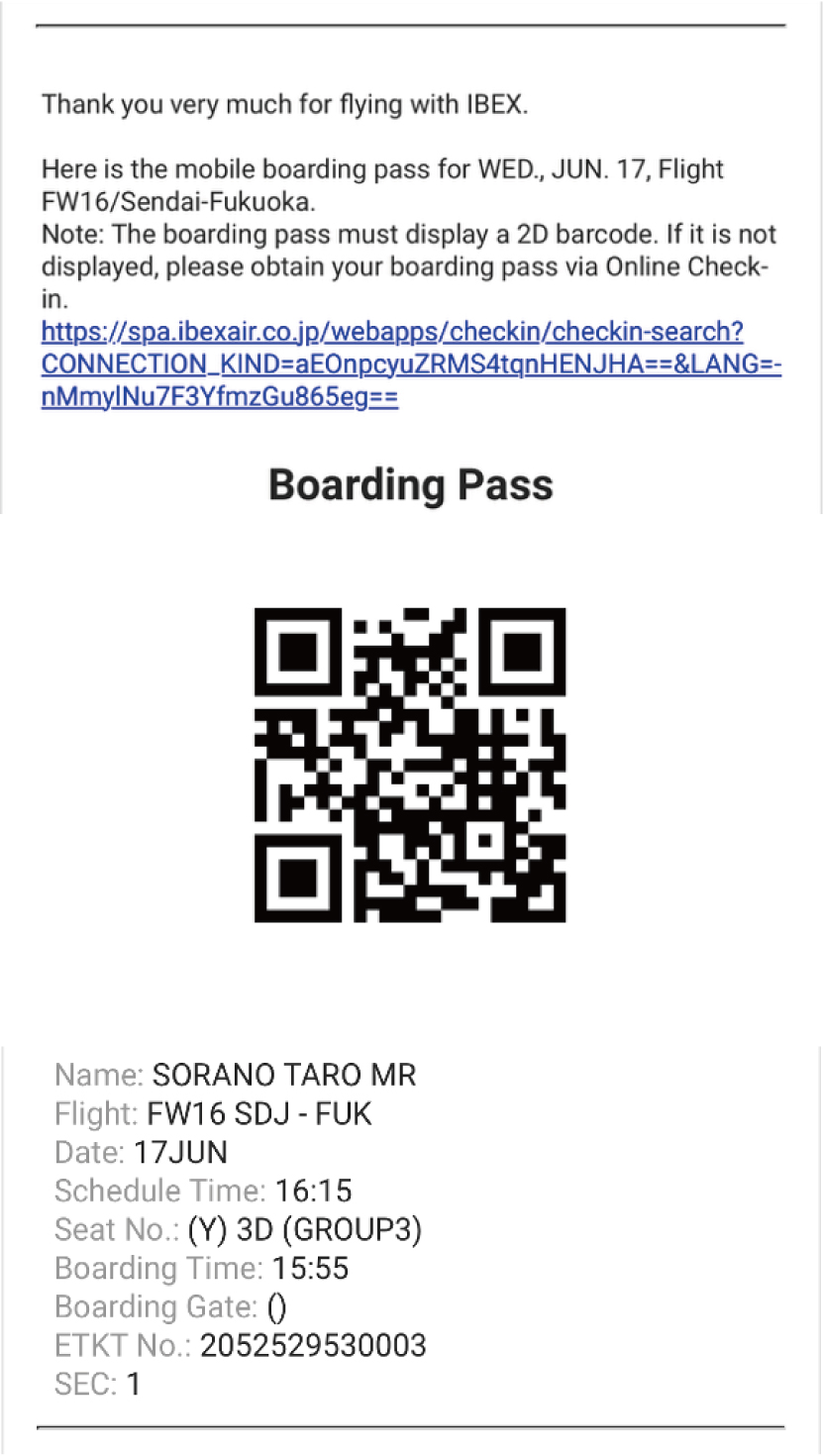
Please check the boarding pass with barcode in your email.
This completes the procedure for receiving a boarding pass by email. If the barcode is not displayed on the boarding pass or you do not receive the email, please continue with the next steps.
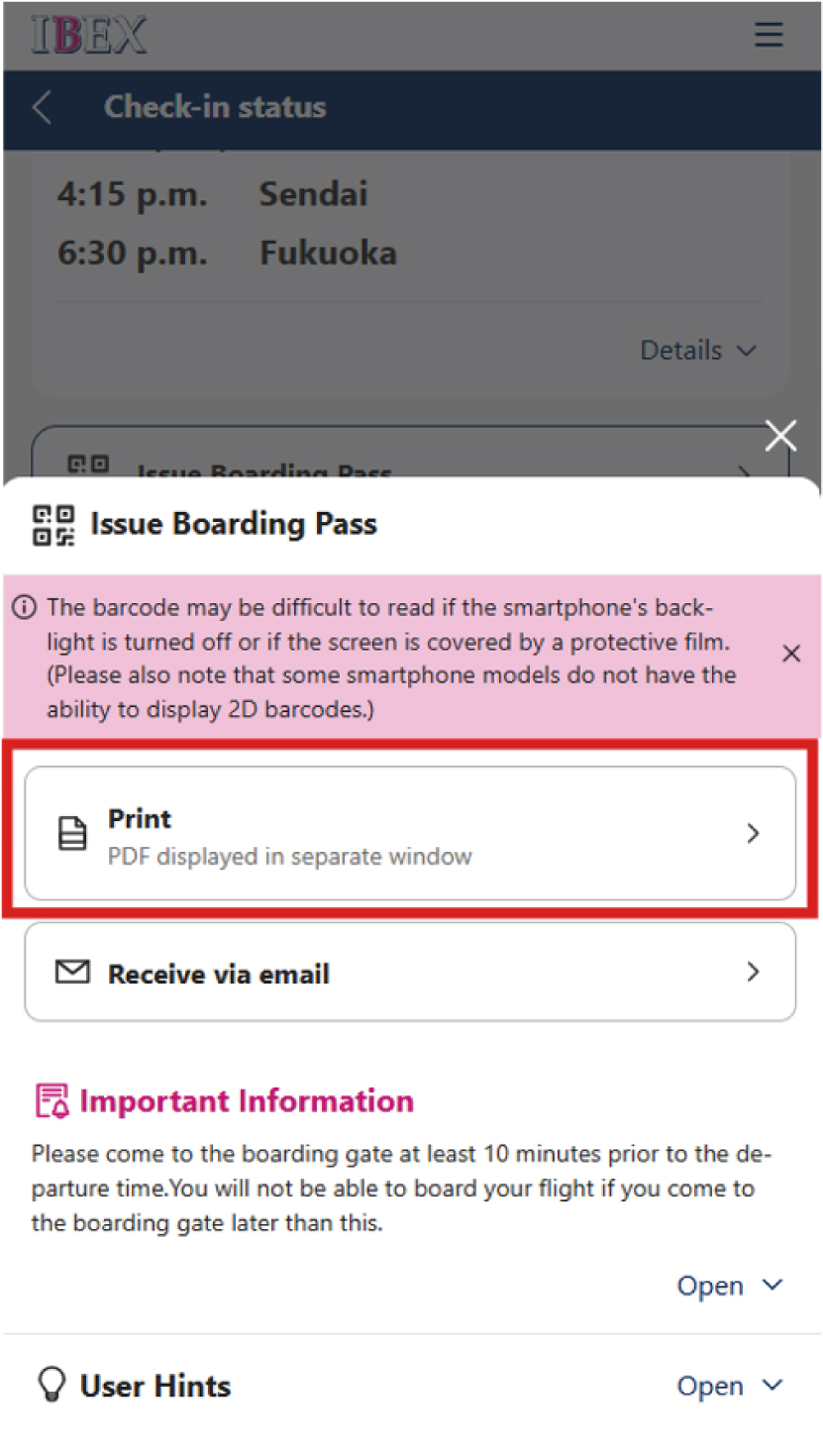
<If you cannot view the boarding pass in the email>
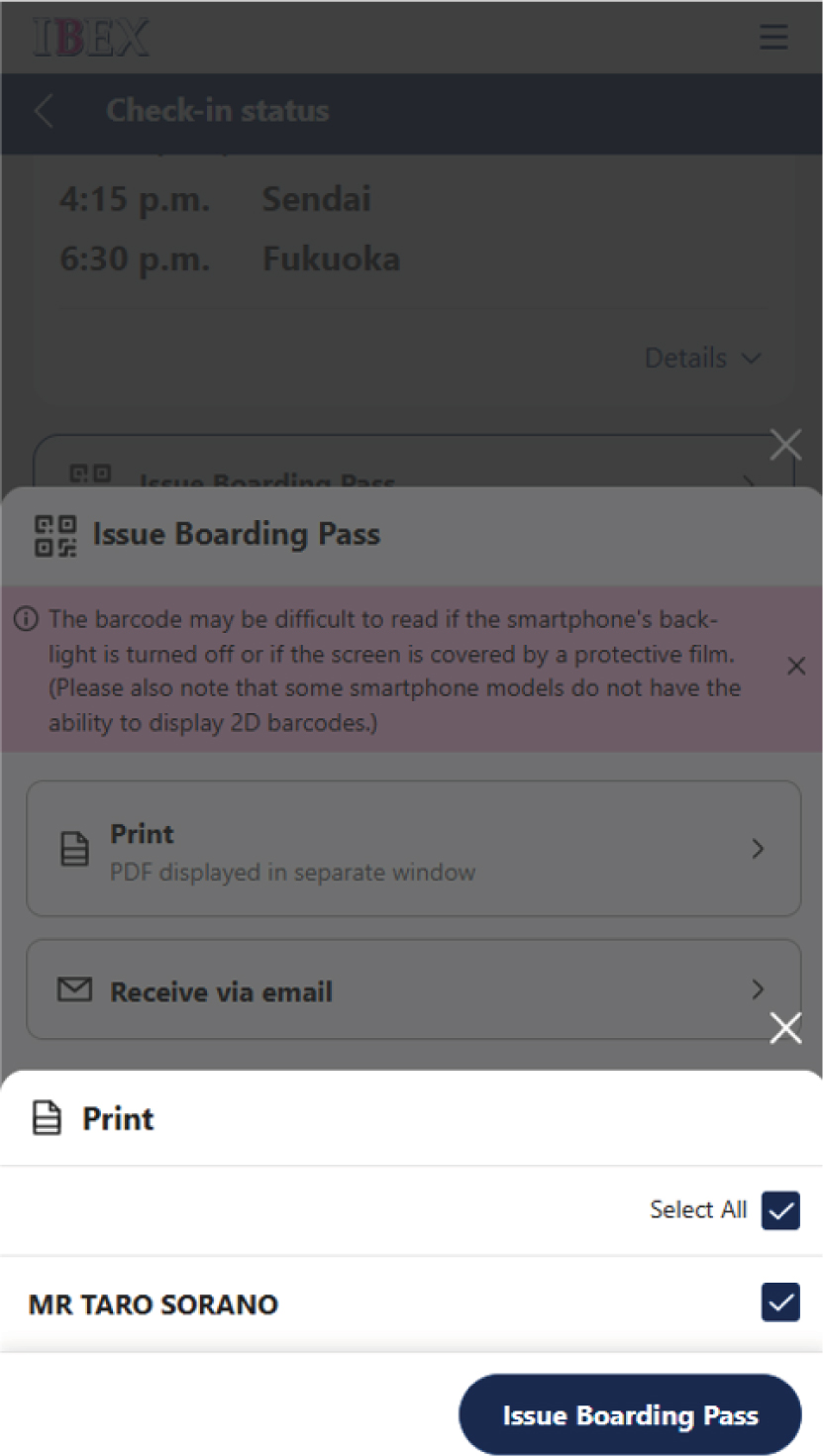
On the Issue Boarding Pass screen in Online Check-in, select [Print].
<If you cannot view the boarding pass in the email>
Select the passenger whose boarding pass you would like to display, then press [Issue Boarding Pass].
<If you cannot view the boarding pass in the email>
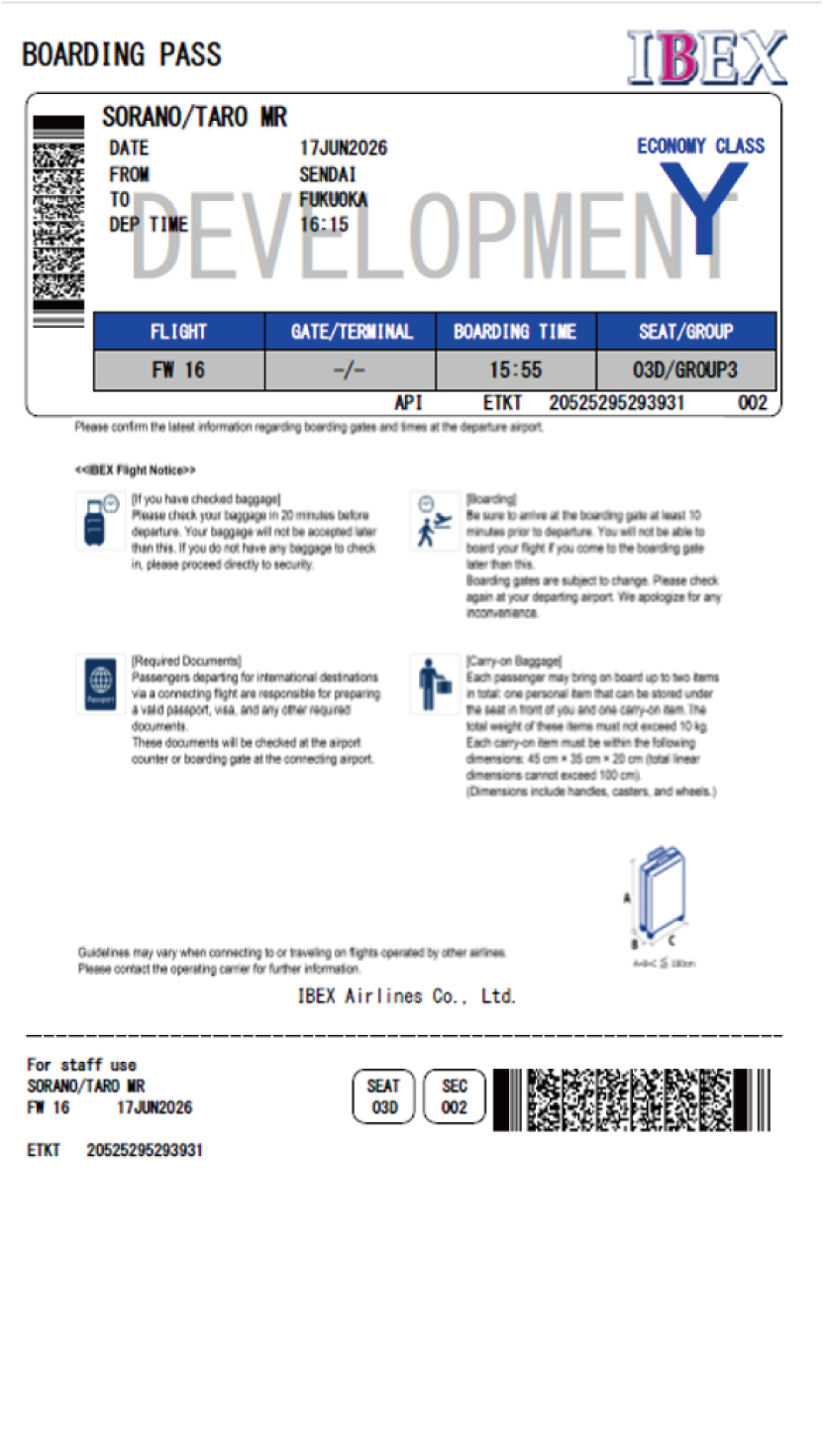
The process is complete once the PDF boarding pass is displayed. Save a screenshot or the file and use it when boarding.